# react-native-linear-gradient
**Repository Path**: mirrors_danielgindi/react-native-linear-gradient
## Basic Information
- **Project Name**: react-native-linear-gradient
- **Description**: A component for react-native
- **Primary Language**: Unknown
- **License**: MIT
- **Default Branch**: master
- **Homepage**: None
- **GVP Project**: No
## Statistics
- **Stars**: 0
- **Forks**: 0
- **Created**: 2020-08-08
- **Last Updated**: 2026-05-16
## Categories & Tags
**Categories**: Uncategorized
**Tags**: None
## README
[](https://www.npmjs.com/package/react-native-linear-gradient)
[](https://www.npmjs.com/package/react-native-linear-gradient)
# react-native-linear-gradient
A `` component for react-native, as seen in
[react-native-login](https://github.com/brentvatne/react-native-login).
## Add it to your project
You can try linking the project automatically:
`$ react-native link react-native-linear-gradient`
or do it manually as described below:
### iOS
- Run `npm install react-native-linear-gradient --save`
Then either:
##### Cocoapods
add the following line to your Podfile:
```sh
pod 'BVLinearGradient', :path => '../node_modules/react-native-linear-gradient'
```
or:
##### Manually
1. Open your project in XCode, right click on `Libraries` and click `Add
Files to "Your Project Name"` Look under `node_modules/react-native-linear-gradient` and add `BVLinearGradient.xcodeproj`. [(Screenshot)](http://url.brentvatne.ca/g9Wp).
2. Add `libBVLinearGradient.a` to `Build Phases -> Link Binary With Libraries`
[(Screenshot)](http://url.brentvatne.ca/g9Wp).
3. Click on `BVLinearGradient.xcodeproj` in `Libraries` and go the `Build
Settings` tab. Double click the text to the right of `Header Search
Paths` and verify that it has `$(SRCROOT)/../react-native/React` - if it
isn't, then add it. This is so XCode is able to find the headers that
the `BVLinearGradient` source files are referring to by pointing to the
header files installed within the `react-native` `node_modules`
directory. [(Screenshot)](http://url.brentvatne.ca/7wE0).
Then:
- Whenever you want to use it within React code now you can: `import LinearGradient from 'react-native-linear-gradient';`
**If you're having trouble, you can point your `package.json` at github to see if the issue has been fixed. Simply change the dependency**
`"react-native-linear-gradient": "react-native-community/react-native-linear-gradient",`
**to get the data right from github instead of npm and then `npm install`**
For instance the podspec file does not contain the right data (author attributes etc..) in npm while it does in the github repo.
#### Android
- Run `npm install react-native-linear-gradient --save`
Then:
1. in `android/settings.gradle`
```
...
include ':react-native-linear-gradient'
project(':react-native-linear-gradient').projectDir = new File(rootProject.projectDir, '../node_modules/react-native-linear-gradient/android')
```
2. in `android/app/build.gradle` add:
```
dependencies {
...
compile project(':react-native-linear-gradient')
}
```
3. and finally, in `android/app/src/main/java/com/{YOUR_APP_NAME}/MainActivity.java` for react-native < 0.29,
or `android/app/src/main/java/com/{YOUR_APP_NAME}/MainApplication.java` for react-native >= 0.29 add:
```java
//...
import com.BV.LinearGradient.LinearGradientPackage; // <--- This!
//...
@Override
protected List getPackages() {
return Arrays.asList(
new MainReactPackage(),
new LinearGradientPackage() // <---- and This!
);
}
```
### Windows (WPF)
1. in `windows/MyApp.sln` Add -> Existing Project: `node_modules/react-native-linear-gradient/windows/LinearGradientWPF/LinearGradientWPF.csproj`
2. in `windows/MyApp/MyAppWPF/MyAppWPF.csproj` Add -> Reference -> LinearGradientWPF
3. in `windows/MyApp/MyAppWPF/AppReactPage.cs` add: `using LinearGradient;`
and
```csharp
public override List Packages => new List
{
...
new LinearGradientPackage()
}
```
## Examples
### Simple
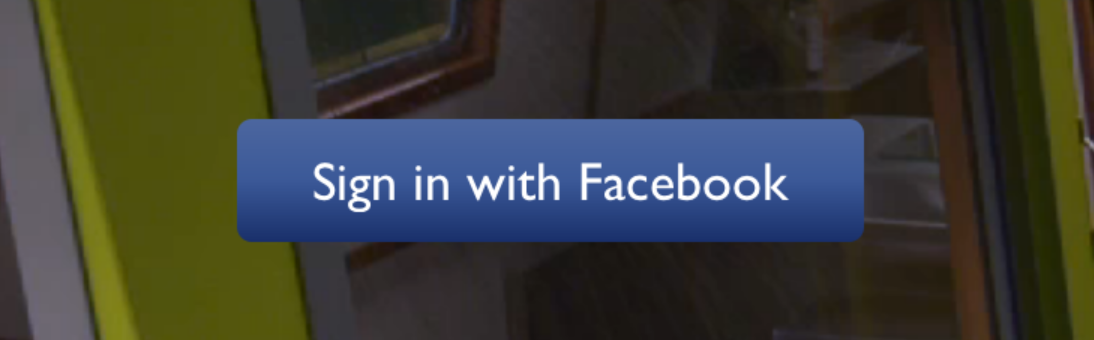
The following code will produce something like this:
```javascript
import LinearGradient from 'react-native-linear-gradient';
// Within your render function
Sign in with Facebook
// Later on in your styles..
var styles = StyleSheet.create({
linearGradient: {
flex: 1,
paddingLeft: 15,
paddingRight: 15,
borderRadius: 5
},
buttonText: {
fontSize: 18,
fontFamily: 'Gill Sans',
textAlign: 'center',
margin: 10,
color: '#ffffff',
backgroundColor: 'transparent',
},
});
```
### Horizontal gradient
Using the styles from above, set `start` and `end` like this to make the gradient go from left to right, instead of from top to bottom:
```javascript
Sign in with Facebook
```
### Text gradient (iOS)
On iOS you can use the `MaskedViewIOS` to display text with a gradient. The trick here is to render the text twice; once for the mask, and once to let the gradient have the correct size (hence the `opacity: 0`):
```jsx
}>
```
### Additional props
In addition to regular `View` props, you can also provide additional props to customize your gradient look:
#### colors
An array of at least two color values that represent gradient colors. Example: `['red', 'blue']` sets gradient from red to blue.
#### start
An optional object of the following type: `{ x: number, y: number }`. Coordinates declare the position that the gradient starts at, as a fraction of the overall size of the gradient, starting from the top left corner. Example: `{ x: 0.1, y: 0.1 }` means that the gradient will start 10% from the top and 10% from the left.
#### end
Same as start, but for the end of the gradient.
#### locations
An optional array of numbers defining the location of each gradient color stop, mapping to the color with the same index in `colors` prop. Example: `[0.1, 0.75, 1]` means that first color will take 0% - 10%, second color will take 10% - 75% and finally third color will occupy 75% - 100%.
```javascript
Sign in with Facebook
```

#### useAngle / angle / angleCenter
You may want to achieve an angled gradient effect, similar to those in image editors like Photoshop.
One issue is that you have to calculate the angle based on the view's size, which only happens asynchronously and will cause unwanted flickr.
In order to do that correctly you can set `{ useAngle: true, angle: 45, angleCenter: { x: 0.5, y: 0.5} }`, to achieve a gradient with a 45 degrees angle, with its center positioned in the view's exact center.
`useAngle` is used to turn on/off angle based calculation (as opposed to `start`/`end`).
`angle` is the angle in degrees.
`angleCenter` is the center point of the angle (will control the weight and stretch of the gradient like it does in photoshop.
### Updating the values for fun
Check out [Examples/AnimatedGradient](https://github.com/react-native-community/react-native-linear-gradient/blob/master/Examples/AnimatedGradient/src/index.js) (`git clone` this project, cd into it, npm install, open in XCode and run) to see how this is done:
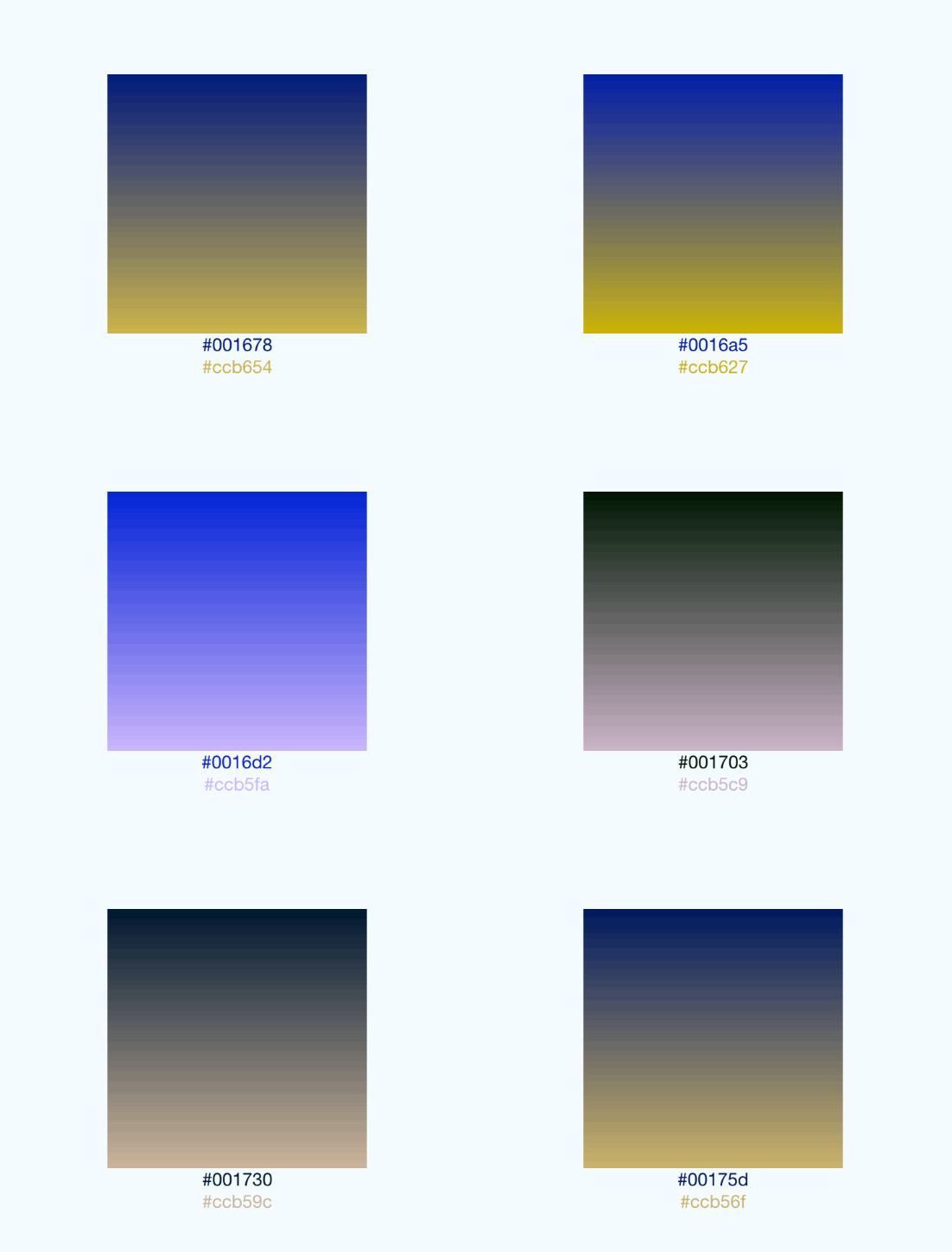
*This gif was created using [licecap](http://www.cockos.com/licecap/) - a great piece of free OSS*
### An example app
You can see this component in action in [brentvatne/react-native-login](https://github.com/brentvatne/react-native-login/blob/master/App/Screens/LoginScreen.js#L58-L62).
### Other platforms
- Web: [react-native-web-community/react-native-web-linear-gradient](https://github.com/react-native-web-community/react-native-web-linear-gradient)
### License
License is MIT