# meanstore
**Repository Path**: leon00/meanstore
## Basic Information
- **Project Name**: meanstore
- **Description**: No description available
- **Primary Language**: JavaScript
- **License**: Not specified
- **Default Branch**: master
- **Homepage**: None
- **GVP Project**: No
## Statistics
- **Stars**: 0
- **Forks**: 0
- **Created**: 2018-08-15
- **Last Updated**: 2020-12-18
## Categories & Tags
**Categories**: Uncategorized
**Tags**: None
## README

# MEANStore - MeanMart
An example ecommerce / Retail software solution demonstrating the power and flexibility of MongoDB.
## Installation via Vagrant
MEANStore leverages vagrant to deliver a fully functional virtual environment with MEANStore / MEANMart running.
```
git clone https://github.com/mrlynn/meanstore.git
cd meanstore
vagrant up
```
At this point, the application should be up and running and can be accessed from your laptop/desktop by opening the url http://localhost:30001
### Note: If the application does not come up in your browser, vagrant ssh to your instance, and restart the application. Ensure that MongoDB is running ###
```
vagrant ssh # access the vagrant instance
sudo su - # become super user
cd /home/vagrant/meanmart/meanstore # change to project directory
npm run dev # run the application in developer mode
```
At this point, the application should be up and running and can be accessed from your laptop/desktop by opening the url http://127.0.0.1:30000 depending on the specific settings in your .env.hackathon configuration file.
## Installation via local
```
git clone https://github.com/mrlynn/meanstore.git
cd meanstore
npm install
# unicode doesn't install nicely first pass - try again
npm install unicode
# install faker to generate data
npm install faker
# Generate some data...
node data/fake-refrigerators.js
node data/fake-televisions.js
node data/fake-cameras.js
node data/fake-apparel.js
# Create the categories...
node data/category-seeder.js
# Now run it...
npm run dev
```
## Usage
Once vagrant finishes provisioning, ssh into the instance:
```
vagrant ssh
```
You should find that MongoDB has been installed and is running. You should also find that a database and a set of collections with test data has been created.
Obtaining API Keys
------------------
To use any of the included APIs or OAuth authentication methods, you will need
to obtain appropriate credentials: Client ID, Client Secret, API Key, or
Username & Password. You will need to go through each provider to generate new
credentials.
**MEANStore 1.0 Update:** I have included dummy keys and passwords for
all API examples to get you up and running even faster. But don't forget to update
them with *your credentials* when you are ready to deploy an app.
 - Visit Google Cloud Console
- Click on the **Create Project** button
- Enter *Project Name*, then click on **Create** button
- Then click on *APIs & auth* in the sidebar and select *API* tab
- Click on **Google+ API** under *Social APIs*, then click **Enable API**
- Next, under *APIs & auth* in the sidebar click on *Credentials* tab
- Click on **Create new Client ID** button
- Select *Web Application* and click on **Configure Consent Screen**
- Fill out the required fields then click on **Save**
- In the *Create Client ID* modal dialog:
- **Application Type**: Web Application
- **Authorized Javascript origins**: http://localhost:3000
- **Authorized redirect URI**: http://localhost:3000/auth/google/callback
- Click on **Create Client ID** button
- Copy and paste *Client ID* and *Client secret* keys into `.env`
**Note:** When you ready to deploy to production don't forget to
add your new url to *Authorized Javascript origins* and *Authorized redirect URI*,
e.g. `http://my-awesome-app.herokuapp.com` and
`http://my-awesome-app.herokuapp.com/auth/google/callback` respectively.
The same goes for other providers.
- Visit Google Cloud Console
- Click on the **Create Project** button
- Enter *Project Name*, then click on **Create** button
- Then click on *APIs & auth* in the sidebar and select *API* tab
- Click on **Google+ API** under *Social APIs*, then click **Enable API**
- Next, under *APIs & auth* in the sidebar click on *Credentials* tab
- Click on **Create new Client ID** button
- Select *Web Application* and click on **Configure Consent Screen**
- Fill out the required fields then click on **Save**
- In the *Create Client ID* modal dialog:
- **Application Type**: Web Application
- **Authorized Javascript origins**: http://localhost:3000
- **Authorized redirect URI**: http://localhost:3000/auth/google/callback
- Click on **Create Client ID** button
- Copy and paste *Client ID* and *Client secret* keys into `.env`
**Note:** When you ready to deploy to production don't forget to
add your new url to *Authorized Javascript origins* and *Authorized redirect URI*,
e.g. `http://my-awesome-app.herokuapp.com` and
`http://my-awesome-app.herokuapp.com/auth/google/callback` respectively.
The same goes for other providers.
 - Visit Facebook Developers
- Click **My Apps**, then select **Add a New App* from the dropdown menu
- Select **Website** platform and enter a new name for your app
- Click on the **Create New Facebook App ID** button
- Choose a **Category** that best describes your app
- Click on **Create App ID** button
- In the upper right corner click on **Skip Quick Star**
- Copy and paste *App ID* and *App Secret* keys into `.env`
- **Note:** *App ID* is **clientID**, *App Secret* is **clientSecret**
- Click on the *Settings* tab in the left nav, then click on **+ Add Platform**
- Select **Website**
- Enter `http://localhost:3000` under *Site URL*
**Note:** After a successful sign in with Facebook, a user will be redirected back to home page with appended hash `#_=_` in the URL. It is *not* a bug. See this [Stack Overflow](https://stackoverflow.com/questions/7131909/facebook-callback-appends-to-return-url) discussion for ways to handle it.
- Visit Facebook Developers
- Click **My Apps**, then select **Add a New App* from the dropdown menu
- Select **Website** platform and enter a new name for your app
- Click on the **Create New Facebook App ID** button
- Choose a **Category** that best describes your app
- Click on **Create App ID** button
- In the upper right corner click on **Skip Quick Star**
- Copy and paste *App ID* and *App Secret* keys into `.env`
- **Note:** *App ID* is **clientID**, *App Secret* is **clientSecret**
- Click on the *Settings* tab in the left nav, then click on **+ Add Platform**
- Select **Website**
- Enter `http://localhost:3000` under *Site URL*
**Note:** After a successful sign in with Facebook, a user will be redirected back to home page with appended hash `#_=_` in the URL. It is *not* a bug. See this [Stack Overflow](https://stackoverflow.com/questions/7131909/facebook-callback-appends-to-return-url) discussion for ways to handle it.
## API
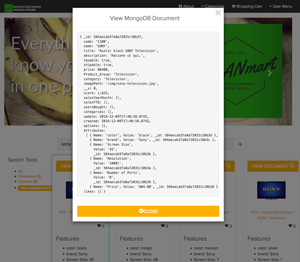
MEANStore comes complete with an api that enables you to query, and manage the MongoDB database. Should you want to review the internal data structures to discover how one might build a product catalog using MongoDB's document-based data storage methodology, a great way to start is by using Postman. With Postman, you can construct requests quickly, save them for later use and analyze the responses sent by the API. Postman can dramatically cut down the time required to test and develop APIs. Postman adapts itself for individual developers, small teams or big organizations equally well.
To leverage postman, once you've gotten it installed, simply load the url for the API into postman. For example, to review the products collection if you're using the vagrant-based install, use the following url in postman:
```
http://localhost:30000/api/products
```
This will expose the entire product catalog collection.
```
[
{
"_id": "584aecaaf580422022aea4fb",
"code": "ref1099",
"name": "Generic Plastic Computer Refrigerator",
"title": "Intelligent IVORY Generic Plastic Computer Refrigerator",
"description": "Est enim aut.",
"taxable": true,
"shipable": true,
"price": 73300,
"Product_Group": "Refrigerator",
"category": "Refrigerator",
"imagePath": "/img/samsung-refrigerator.jpg",
"__v": 0,
"salesYearMonth": [],
"salesYTD": [],
"usersBought": [],
"categories": [],
"update": "2016-12-09T17:40:58.033Z",
"created": "2016-12-09T17:40:58.033Z",
"options": [],
"Attributes": [],
"likes": []
},
...
```
## Screenshots
- 
- 
- 
## Contributing
1. Fork it!
2. Create your feature branch: `git checkout -b my-new-feature`
3. Commit your changes: `git commit -am 'Add some feature'`
4. Push to the branch: `git push origin my-new-feature`
5. Submit a pull request :D
## History
- Version 0.1 - 11/20/2016 - Michael Lynn
- Version 1.0 - 01/01/2017 - Michael Lynn - Updated theme, new category, group and search mechanisms
## Credits / Contributors
- Michael Lynn
## Next Steps
* [MongoDB Documentation](http://mongodb.org/)
* [Star us on GitHub](https://github.com/mrlynn/meanstore)
* [Tweet me](http://twitter.com/mlynn)
## Notes on Installation
* I received an error during installation... something about node-gyp or faker...
- You may safely ignore these errors.