




🚀 Start |
🏰 Features |
👩🏫 Examples |
🖥️ Options |
🧙 Scripts |
📱 Mobile |
🖼️ Visual
📚 API |
🔵 Dashboard |
🔴 Recorder |
🔠 Syntaxes |
🗾 Locales |
🌐 Grid |
🕹️ JSMgr
🤖 CI |
♻️ Templates |
🎞️ Presenter |
🌏 Translator |
📊 Charts |
🗺️ Tours |
🛂 Dialog
One of many examples: test_demo_site.py
```bash cd examples/ pytest test_demo_site.py ```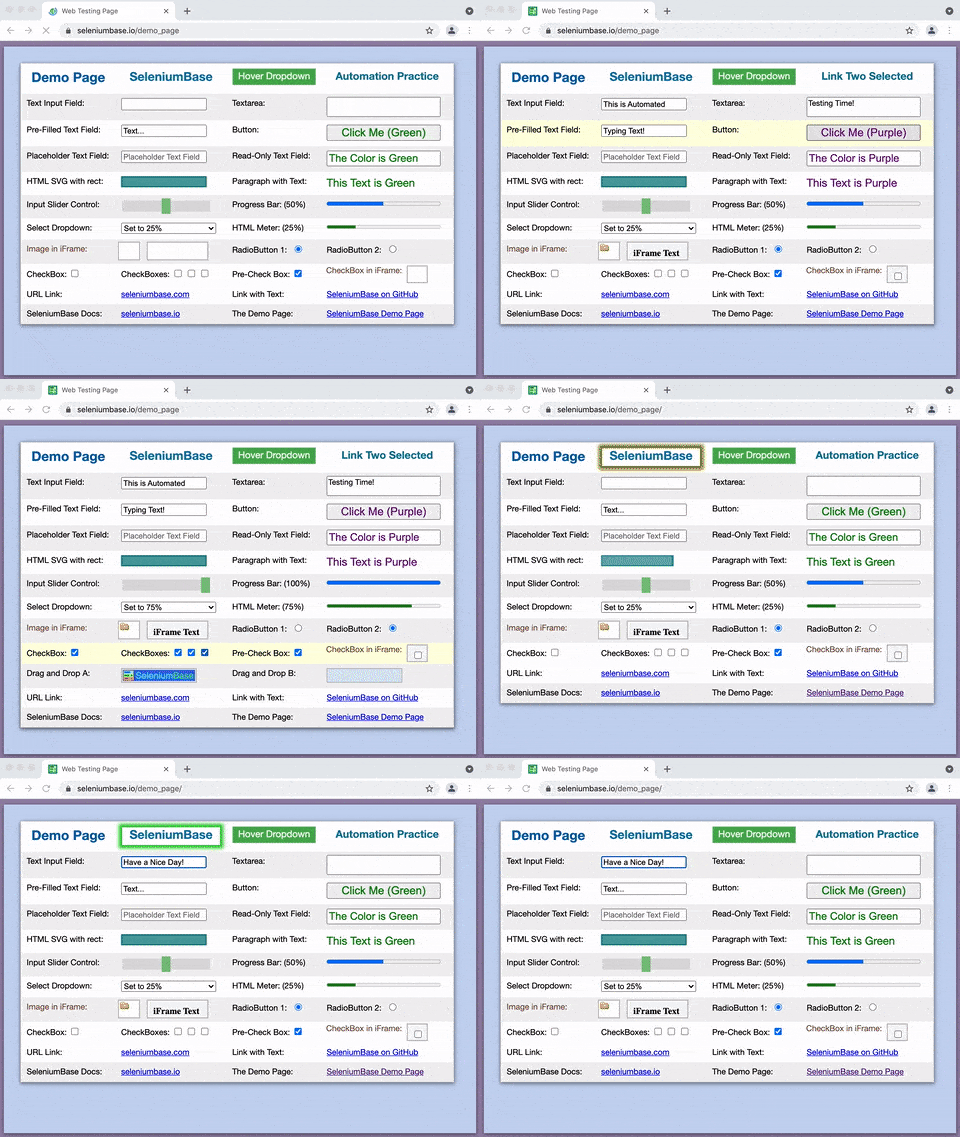
 Python Setup: Install SeleniumBase: Downloading web drivers: Running tests:
Here's my_first_test.py in --demo mode:
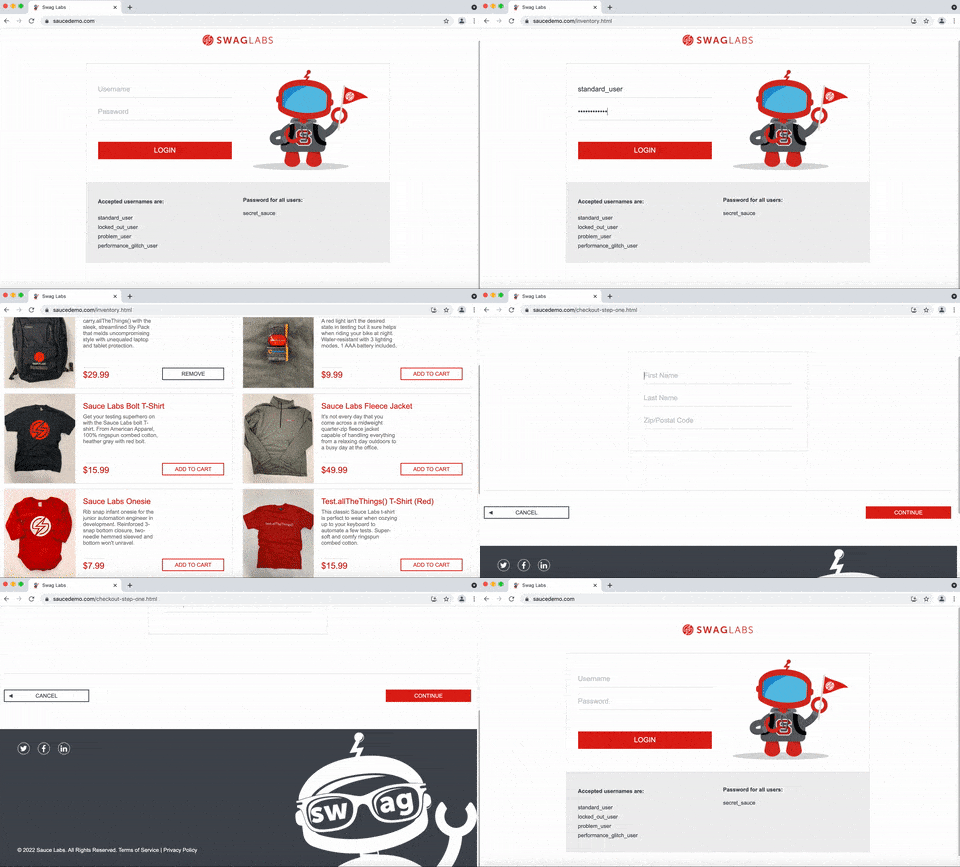
Here's the code for my_first_test.py:
```python from seleniumbase import BaseCase class MyTestClass(BaseCase): def test_swag_labs(self): self.open("https://www.saucedemo.com") self.type("#user-name", "standard_user") self.type("#password", "secret_sauce\n") self.assert_element("#inventory_container") self.assert_text("PRODUCTS", "span.title") self.click('button[name*="backpack"]') self.click("#shopping_cart_container a") self.assert_text("YOUR CART", "span.title") self.assert_text("Backpack", "div.cart_item") self.click("button#checkout") self.type("#first-name", "SeleniumBase") self.type("#last-name", "Automation") self.type("#postal-code", "77123") self.click("input#continue") self.assert_text("CHECKOUT: OVERVIEW") self.assert_text("Backpack", "div.cart_item") self.click("button#finish") self.assert_exact_text("THANK YOU FOR YOUR ORDER", "h2") self.assert_element('img[alt="Pony Express"]') self.js_click("a#logout_sidebar_link") ``` * By default, **[CSS Selectors](https://www.w3schools.com/cssref/css_selectors.asp)** are used for finding page elements. * If you're new to CSS Selectors, games like [CSS Diner](http://flukeout.github.io/) can help you learn. * Here are some common ``SeleniumBase`` methods that you might find in tests: ```python self.open(url) # Navigate the browser window to the URL. self.type(selector, text) # Update the field with the text. self.click(selector) # Click the element with the selector. self.click_link(link_text) # Click the link containing text. self.go_back() # Navigate back to the previous URL. self.select_option_by_text(dropdown_selector, option) self.hover_and_click(hover_selector, click_selector) self.drag_and_drop(drag_selector, drop_selector) self.get_text(selector) # Get the text from the element. self.get_current_url() # Get the URL of the current page. self.get_page_source() # Get the HTML of the current page. self.get_attribute(selector, attribute) # Get element attribute. self.get_title() # Get the title of the current page. self.switch_to_frame(frame) # Switch into the iframe container. self.switch_to_default_content() # Leave the iframe container. self.open_new_window() # Open a new window in the same browser. self.switch_to_window(window) # Switch to the browser window. self.switch_to_default_window() # Switch to the original window. self.get_new_driver(OPTIONS) # Open a new driver with OPTIONS. self.switch_to_driver(driver) # Switch to the browser driver. self.switch_to_default_driver() # Switch to the original driver. self.wait_for_element(selector) # Wait until element is visible. self.is_element_visible(selector) # Return element visibility. self.is_text_visible(text, selector) # Return text visibility. self.sleep(seconds) # Do nothing for the given amount of time. self.save_screenshot(name) # Save a screenshot in .png format. self.assert_element(selector) # Verify the element is visible. self.assert_text(text, selector) # Verify text in the element. self.assert_title(title) # Verify the title of the web page. self.assert_downloaded_file(file) # Verify file was downloaded. self.assert_no_404_errors() # Verify there are no broken links. self.assert_no_js_errors() # Verify there are no JS errors. ``` 🔵 For the complete list of SeleniumBase methods, see: Method Summary Learn More:SeleniumBase automatically handles common WebDriver actions such as spinning up web browsers and saving screenshots during test failures. (Read more about customizing test runs.)
✅ Simplified Code:SeleniumBase uses simple syntax for commands. Example:
```python self.type("input", "dogs\n") ``` SeleniumBase tests can be run with both ``pytest`` and ``nosetests``, but using ``pytest`` is recommended. (``chrome`` is the default browser if not specified.) ```bash pytest my_first_test.py --browser=chrome nosetests test_suite.py --browser=firefox ``` ✅ Automatic Test Discovery:All Python methods that start with test_ will be run automatically when running pytest or nosetests on Python files. You can also be more specific on what to run within a file by using the following: (Note that the syntax is different for pytest vs nosetests.)
SeleniumBase methods automatically wait for page elements to finish loading before interacting with them (up to a timeout limit). This means you no longer need random time.sleep() statements in your scripts.
 ✅ Automated/Manual Hybrid Mode:
SeleniumBase includes a solution called MasterQA, which speeds up manual testing by having automation perform all the browser actions while the manual tester handles validation.
✅ Feature-Rich:For a full list of SeleniumBase features, Click Here.
Detailed Instructions: Test Directory Configuration: Log files from failed tests: The SeleniumBase Dashboard: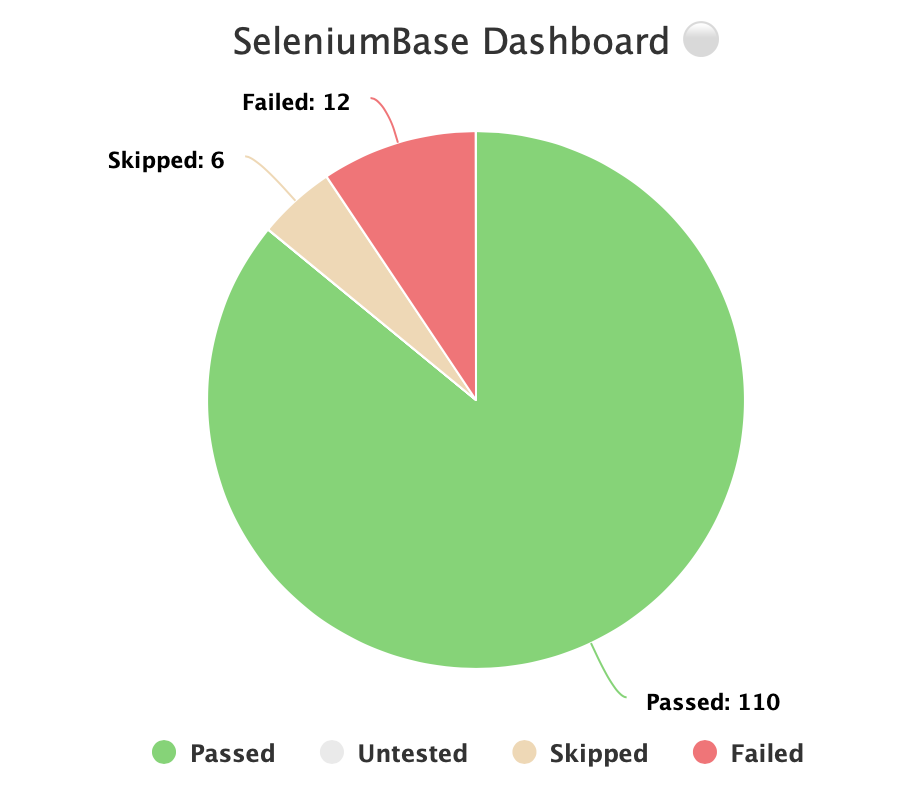 🔵 Additionally, you can host your own SeleniumBase Dashboard Server on a port of your choice. Here's an example of that using Python 3's ``http.server``:
```bash
python -m http.server 1948
```
🔵 Now you can navigate to ``http://localhost:1948/dashboard.html`` in order to view the dashboard as a web app. This requires two different terminal windows: one for running the server, and another for running the tests, which should be run from the same directory. (Use ``CTRL+C`` to stop the http server.)
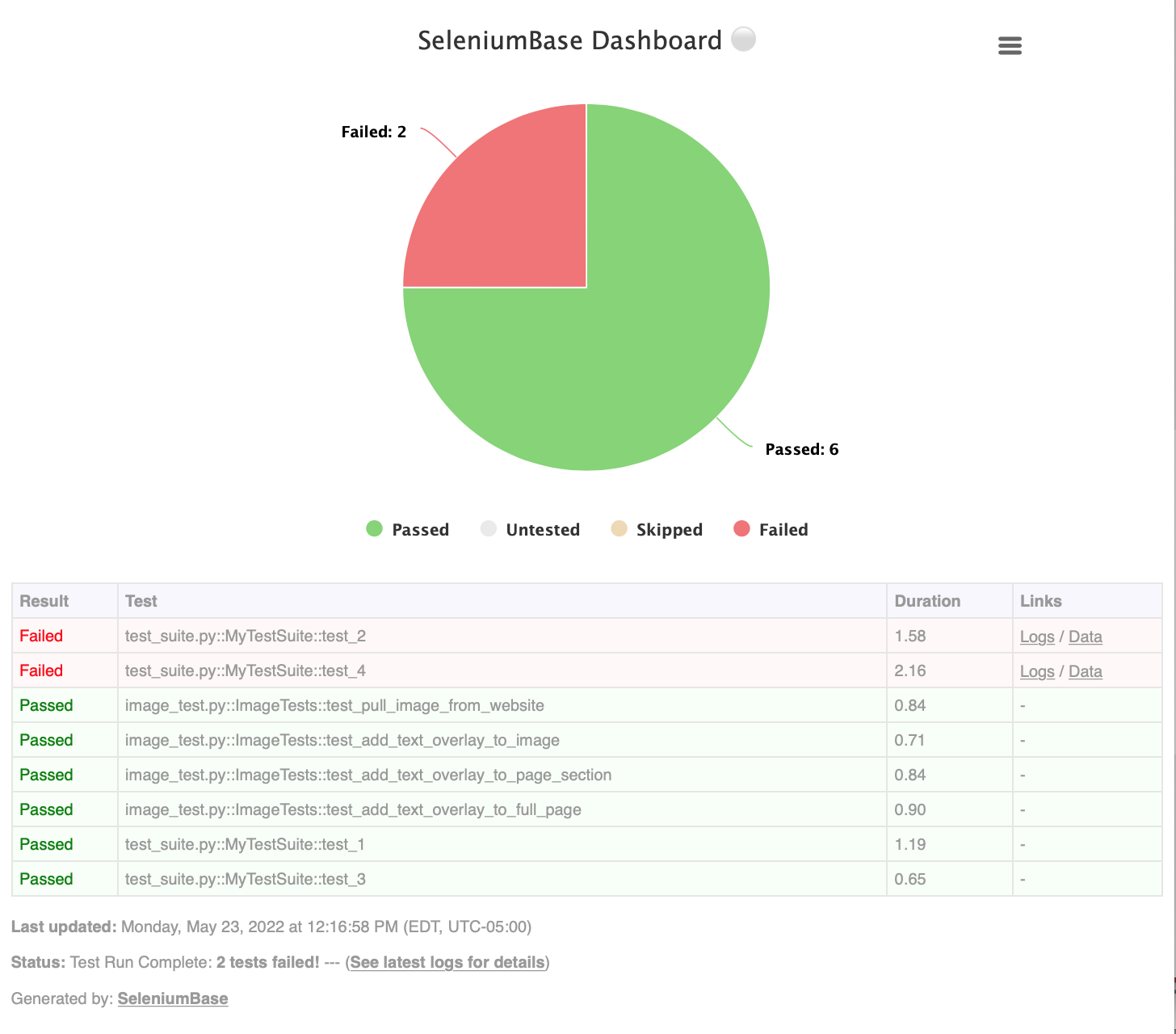
🔵 Here's a full example of what the SeleniumBase Dashboard may look like:
```bash
pytest test_suite.py --dashboard --rs --headless
```
🔵 Additionally, you can host your own SeleniumBase Dashboard Server on a port of your choice. Here's an example of that using Python 3's ``http.server``:
```bash
python -m http.server 1948
```
🔵 Now you can navigate to ``http://localhost:1948/dashboard.html`` in order to view the dashboard as a web app. This requires two different terminal windows: one for running the server, and another for running the tests, which should be run from the same directory. (Use ``CTRL+C`` to stop the http server.)
🔵 Here's a full example of what the SeleniumBase Dashboard may look like:
```bash
pytest test_suite.py --dashboard --rs --headless
```
 --------
Creating Visual Test Reports:
--------
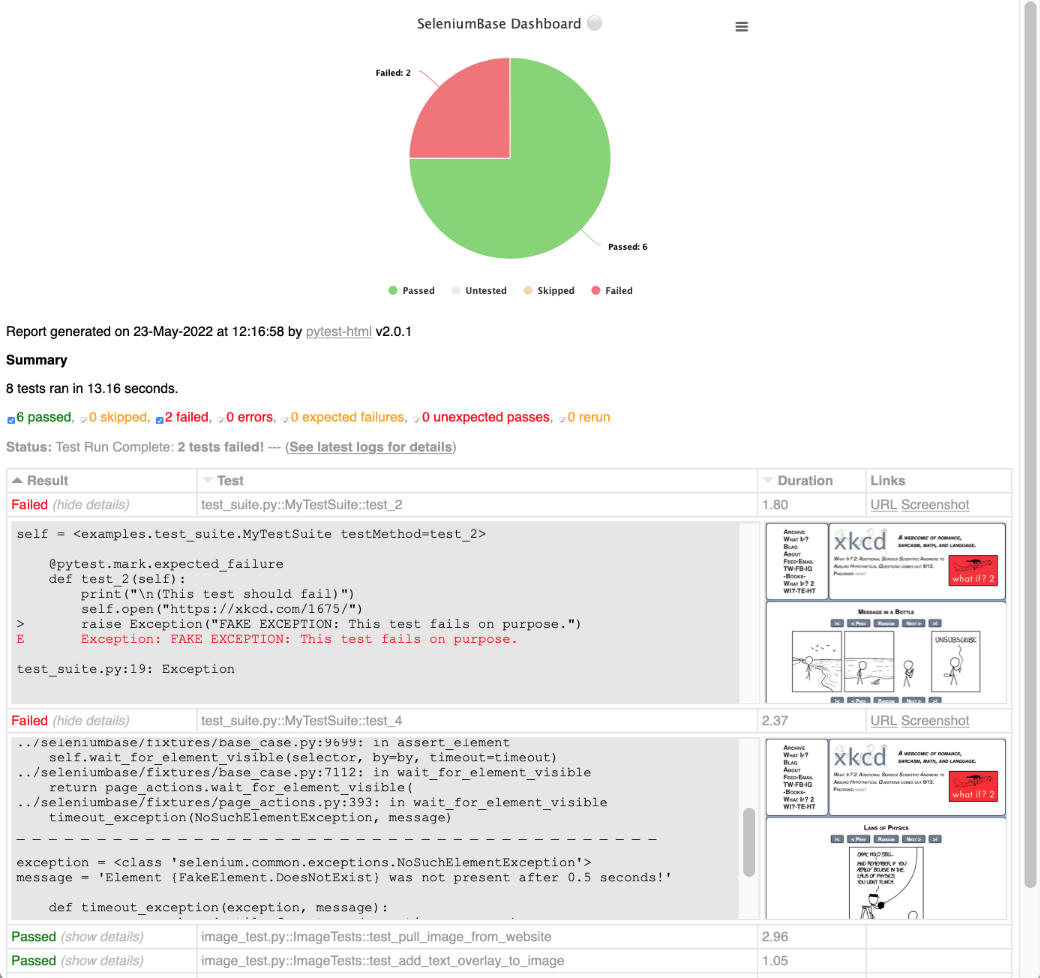
Creating Visual Test Reports: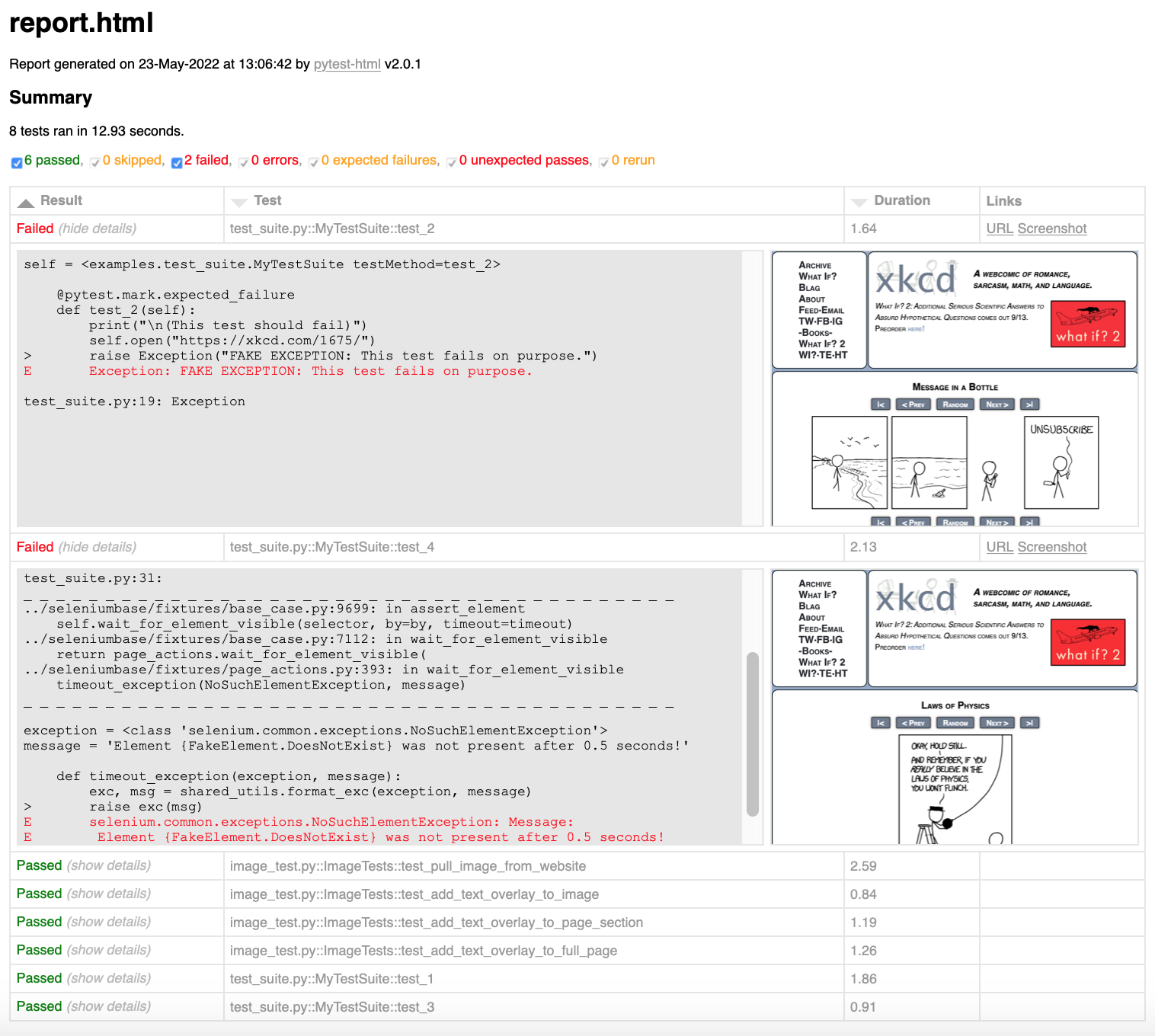 🔵 When combining pytest html reports with SeleniumBase Dashboard usage, the pie chart from the Dashboard will get added to the html report. Additionally, if you set the html report URL to be the same as the Dashboard URL when also using the dashboard, (example: ``--dashboard --html=dashboard.html``), then the Dashboard will become an advanced html report when all the tests complete.
🔵 Here's an example of an upgraded html report:
```bash
pytest test_suite.py --dashboard --html=report.html
```
🔵 When combining pytest html reports with SeleniumBase Dashboard usage, the pie chart from the Dashboard will get added to the html report. Additionally, if you set the html report URL to be the same as the Dashboard URL when also using the dashboard, (example: ``--dashboard --html=dashboard.html``), then the Dashboard will become an advanced html report when all the tests complete.
🔵 Here's an example of an upgraded html report:
```bash
pytest test_suite.py --dashboard --html=report.html
```
 If viewing pytest html reports in [Jenkins](https://www.jenkins.io/), you may need to [configure Jenkins settings](https://stackoverflow.com/a/46197356) for the html to render correctly. This is due to [Jenkins CSP changes](https://www.jenkins.io/doc/book/system-administration/security/configuring-content-security-policy/).
You can also use ``--junit-xml=report.xml`` to get an xml report instead. Jenkins can use this file to display better reporting for your tests.
```bash
pytest test_suite.py --junit-xml=report.xml
```
If viewing pytest html reports in [Jenkins](https://www.jenkins.io/), you may need to [configure Jenkins settings](https://stackoverflow.com/a/46197356) for the html to render correctly. This is due to [Jenkins CSP changes](https://www.jenkins.io/doc/book/system-administration/security/configuring-content-security-policy/).
You can also use ``--junit-xml=report.xml`` to get an xml report instead. Jenkins can use this file to display better reporting for your tests.
```bash
pytest test_suite.py --junit-xml=report.xml
```
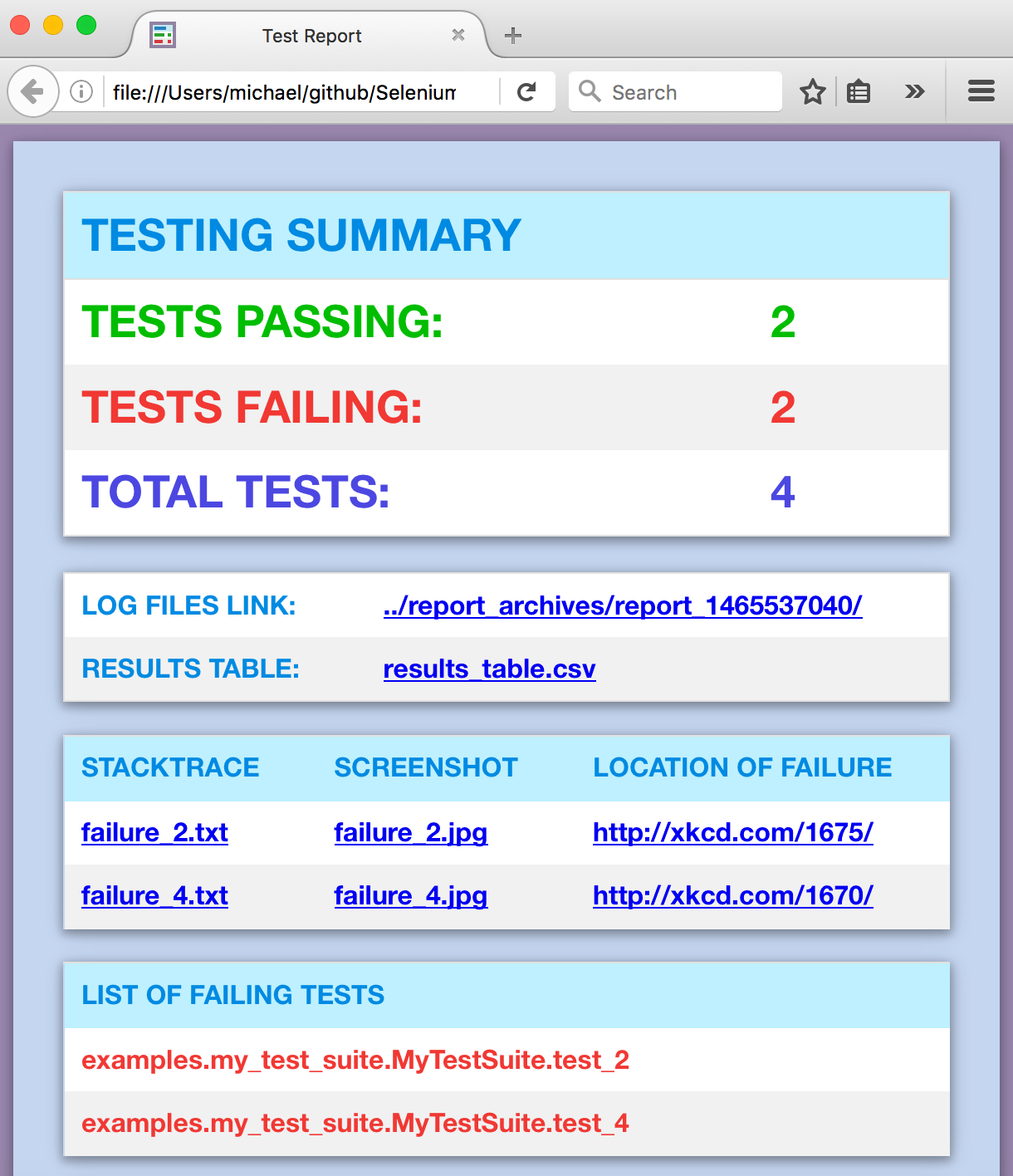 (NOTE: You can add ``--show-report`` to immediately display Nosetest reports after the test suite completes. Only use ``--show-report`` when running tests locally because it pauses the test run.)
Using a Proxy Server: Changing the User-Agent: Handling Pop-Up / Pop Up Alerts:
(NOTE: You can add ``--show-report`` to immediately display Nosetest reports after the test suite completes. Only use ``--show-report`` when running tests locally because it pauses the test run.)
Using a Proxy Server: Changing the User-Agent: Handling Pop-Up / Pop Up Alerts:self.accept_alert() automatically waits for and accepts alert pop-ups. self.dismiss_alert() automatically waits for and dismisses alert pop-ups. On occasion, some methods like self.click(SELECTOR) might dismiss a pop-up on its own because they call JavaScript to make sure that the readyState of the page is complete before advancing. If you're trying to accept a pop-up that got dismissed this way, use this workaround: Call self.find_element(SELECTOR).click() instead, (which will let the pop-up remain on the screen), and then use self.accept_alert() to accept the pop-up (more on that here). If pop-ups are intermittent, wrap code in a try/except block.
Building Guided Tours for Websites: Production Environments & Integrations: Detailed Method Specifications and Examples:self.get_page_source() method along with Python's find() command to parse through the source to find something that Selenium wouldn't be able to. (You may want to brush up on your Python programming skills for that.)
```python
source = self.get_page_source()
head_open_tag = source.find('')
head_close_tag = source.find('', head_open_tag)
everything_inside_head = source[head_open_tag+len(''):head_close_tag]
```
🔵 Clicking:
To click an element on the page:
```python
self.click("div#my_id")
```
**ProTip™:** In most web browsers, you can right-click on a page and select ``Inspect Element`` to see the CSS selector details that you'll need to create your own scripts.
🔵 Typing Text:
self.type(selector, text) # updates the text from the specified element with the specified value. An exception is raised if the element is missing or if the text field is not editable. Example:
```python
self.type("input#id_value", "2012")
```
You can also use self.add_text() or the WebDriver .send_keys() command, but those won't clear the text box first if there's already text inside.
If you want to type in special keys, that's easy too. Here's an example:
```python
from selenium.webdriver.common.keys import Keys
self.find_element("textarea").send_keys(Keys.SPACE + Keys.BACK_SPACE + '\n') # The backspace should cancel out the space, leaving you with the newline
```
🔵 Getting the text from an element on a page:
```python
text = self.get_text("header h2")
```
🔵 Getting the attribute value from an element on a page:
```python
attribute = self.get_attribute("#comic img", "title")
```
🔵 Asserting existence of an element on a page within some number of seconds:
```python
self.wait_for_element_present("div.my_class", timeout=10)
```
(NOTE: You can also use: ``self.assert_element_present(ELEMENT)``)
🔵 Asserting visibility of an element on a page within some number of seconds:
```python
self.wait_for_element_visible("a.my_class", timeout=5)
```
(NOTE: The short versions of this are ``self.find_element(ELEMENT)`` and ``self.assert_element(ELEMENT)``. The find_element() version returns the element)
Since the line above returns the element, you can combine that with .click() as shown below:
```python
self.find_element("a.my_class", timeout=5).click()
# But you're better off using the following statement, which does the same thing:
self.click("a.my_class") # DO IT THIS WAY!
```
**ProTip™:** You can use dots to signify class names (Ex: ``div.class_name``) as a simplified version of ``div[class="class_name"]`` within a CSS selector.
You can also use ``*=`` to search for any partial value in a CSS selector as shown below:
```python
self.click('a[name*="partial_name"]')
```
🔵 Asserting visibility of text inside an element on a page within some number of seconds:
```python
self.assert_text("Make it so!", "div#trek div.picard div.quotes")
self.assert_text("Tea. Earl Grey. Hot.", "div#trek div.picard div.quotes", timeout=3)
```
(NOTE: ``self.find_text(TEXT, ELEMENT)`` and ``self.wait_for_text(TEXT, ELEMENT)`` also do this. For backwards compatibility, older method names were kept, but the default timeout may be different.)
🔵 Asserting Anything:
```python
self.assert_true(myvar1 == something)
self.assert_equal(var1, var2)
```
🔵 Useful Conditional Statements: (with creative examples in action)
is_element_visible(selector) # is an element visible on a page
```python
if self.is_element_visible('div#warning'):
print("Red Alert: Something bad might be happening!")
```
is_element_present(selector) # is an element present on a page
```python
if self.is_element_present('div#top_secret img.tracking_cookie'):
self.contact_cookie_monster() # Not a real SeleniumBase method
else:
current_url = self.get_current_url()
self.contact_the_nsa(url=current_url, message="Dark Zone Found") # Not a real SeleniumBase method
```
Another example:
```python
def is_there_a_cloaked_klingon_ship_on_this_page():
if self.is_element_present("div.ships div.klingon"):
return not self.is_element_visible("div.ships div.klingon")
return False
```
is_text_visible(text, selector) # is text visible on a page
```python
def get_mirror_universe_captain_picard_superbowl_ad(superbowl_year):
selector = "div.superbowl_%s div.commercials div.transcript div.picard" % superbowl_year
if self.is_text_visible("Yes, it was I who summoned you all here.", selector):
return "Picard Paramount+ Superbowl Ad 2020"
elif self.is_text_visible("Commander, signal the following: Our Network is Secure!"):
return "Picard Mirror Universe iboss Superbowl Ad 2018"
elif self.is_text_visible("For the Love of Marketing and Earl Grey Tea!", selector):
return "Picard Mirror Universe HubSpot Superbowl Ad 2015"
elif self.is_text_visible("Delivery Drones... Engage", selector):
return "Picard Mirror Universe Amazon Superbowl Ad 2015"
elif self.is_text_visible("Bing it on Screen!", selector):
return "Picard Mirror Universe Microsoft Superbowl Ad 2015"
elif self.is_text_visible("OK Glass, Make it So!", selector):
return "Picard Mirror Universe Google Superbowl Ad 2015"
elif self.is_text_visible("Number One, I've Never Seen Anything Like It.", selector):
return "Picard Mirror Universe Tesla Superbowl Ad 2015"
elif self.is_text_visible("Let us make sure history never forgets the name ... Facebook", selector):
return "Picard Mirror Universe Facebook Superbowl Ad 2015"
elif self.is_text_visible("""With the first link, the chain is forged.
The first speech censored, the first thought forbidden,
the first freedom denied, chains us all irrevocably.""", selector):
return "Picard Mirror Universe Wikimedia Superbowl Ad 2015"
else:
raise Exception("Reports of my assimilation are greatly exaggerated.")
```
🔵 Switching Tabs:
If your test opens up a new tab/window, you can switch to it. (SeleniumBase automatically switches to new tabs that don't open to ``about:blank`` URLs.)
```python self.switch_to_window(1) # This switches to the new tab (0 is the first one) ``` 🔵 ProTip™: iFrames follow the same principle as new windows - you need to specify the iFrame if you want to take action on something in there ```python self.switch_to_frame('ContentManagerTextBody_ifr') # Now you can act inside the iFrame # .... Do something cool (here) self.switch_to_default_content() # Exit the iFrame when you're done ``` 🔵 Executing Custom jQuery Scripts:jQuery is a powerful JavaScript library that allows you to perform advanced actions in a web browser. If the web page you're on already has jQuery loaded, you can start executing jQuery scripts immediately. You'd know this because the web page would contain something like the following in the HTML:
```html ``` 🔵 It's OK if you want to use jQuery on a page that doesn't have it loaded yet. To do so, run the following command first: ```python self.activate_jquery() ``` 🔵 Some websites have a restrictive [Content Security Policy](https://developer.mozilla.org/en-US/docs/Web/HTTP/CSP) to prevent users from loading jQuery and other external libraries onto their websites. If you need to use jQuery or another JS library on such a website, add ``--disable-csp`` on the command-line. 🔵 Here are some examples of using jQuery in your scripts: ```python self.execute_script('jQuery, window.scrollTo(0, 600)') # Scrolling the page self.execute_script("jQuery('#annoying-widget').hide()") # Hiding elements on a page self.execute_script("jQuery('#hidden-widget').show(0)") # Showing hidden elements on a page self.execute_script("jQuery('#annoying-button a').remove()") # Removing elements on a page self.execute_script("jQuery('%s').mouseover()" % (mouse_over_item)) # Mouse-over elements on a page self.execute_script("jQuery('input#the_id').val('my_text')") # Fast text input on a page self.execute_script("jQuery('div#dropdown a.link').click()") # Click elements on a page self.execute_script("return jQuery('div#amazing')[0].text") # Returns the css "text" of the element given self.execute_script("return jQuery('textarea')[2].value") # Returns the css "value" of the 3rd textarea element on the page ``` (Most of the above commands can be done directly with built-in SeleniumBase methods.) 🔵 In the next example, JavaScript creates a referral button on a page, which is then clicked: ```python start_page = "https://xkcd.com/465/" destination_page = "https://github.com/seleniumbase/SeleniumBase" self.open(start_page) referral_link = '''Free-Referral Button!''' % destination_page self.execute_script('''document.body.innerHTML = \"%s\"''' % referral_link) self.click("a.analytics") # Clicks the generated button ``` (Due to popular demand, this traffic generation example has been included in SeleniumBase with the ``self.generate_referral(start_page, end_page)`` and the ``self.generate_traffic(start_page, end_page, loops)`` methods.) 🔵 Using deferred asserts:Let's say you want to verify multiple different elements on a web page in a single test, but you don't want the test to fail until you verified several elements at once so that you don't have to rerun the test to find more missing elements on the same page. That's where deferred asserts come in. Here's the example:
```python from seleniumbase import BaseCase class MyTestClass(BaseCase): def test_deferred_asserts(self): self.open('https://xkcd.com/993/') self.wait_for_element('#comic') self.deferred_assert_element('img[alt="Brand Identity"]') self.deferred_assert_element('img[alt="Rocket Ship"]') # Will Fail self.deferred_assert_element('#comicmap') self.deferred_assert_text('Fake Item', '#middleContainer') # Will Fail self.deferred_assert_text('Random', '#middleContainer') self.deferred_assert_element('a[name="Super Fake !!!"]') # Will Fail self.process_deferred_asserts() ```deferred_assert_element() and deferred_assert_text() will save any exceptions that would be raised.
To flush out all the failed deferred asserts into a single exception, make sure to call self.process_deferred_asserts() at the end of your test method. If your test hits multiple pages, you can call self.process_deferred_asserts() before navigating to a new page so that the screenshot from your log files matches the URL where the deferred asserts were made.
🔵 Accessing Raw WebDriver:
If you need access to any commands that come with standard WebDriver, you can call them directly like this:
```python self.driver.delete_all_cookies() capabilities = self.driver.capabilities self.driver.find_elements_by_partial_link_text("GitHub") ``` (In general, you'll want to use the SeleniumBase versions of methods when available.) 🔵 Retrying failing tests automatically:You can use --reruns=NUM to retry failing tests that many times. Use --reruns-delay=SECONDS to wait that many seconds between retries. Example:
Additionally, you can use the @retry_on_exception() decorator to specifically retry failing methods. (First import: from seleniumbase import decorators) To learn more about SeleniumBase decorators, [click here](https://github.com/seleniumbase/SeleniumBase/tree/master/seleniumbase/common).
Wrap-Up