# ComposeMediaPlayer
**Repository Path**: giho-git-hub/ComposeMediaPlayer
## Basic Information
- **Project Name**: ComposeMediaPlayer
- **Description**: KMP的视频播放
- **Primary Language**: Unknown
- **License**: MIT
- **Default Branch**: master
- **Homepage**: None
- **GVP Project**: No
## Statistics
- **Stars**: 0
- **Forks**: 0
- **Created**: 2026-06-30
- **Last Updated**: 2026-06-30
## Categories & Tags
**Categories**: Uncategorized
**Tags**: None
## README
# 🎥 Compose Media Player
 [](https://search.maven.org/artifact/io.github.kdroidfilter/composemediaplayer)
[](https://opensource.org/licenses/MIT)
[](https://kotlinlang.org/docs/multiplatform.html)
[](https://github.com/kdroidfilter/ComposeMediaPlayer)
[](https://github.com/kdroidfilter/ComposeMediaPlayer/issues)
[](https://kdroidfilter.github.io/ComposeMediaPlayer/)
[](https://github.com/kdroidfilter/ComposeMediaPlayer/actions/workflows/publish-documentation-and-sample.yml)
[](https://github.com/kdroidfilter/ComposeMediaPlayer/commits/master)
### Supported by
[](https://jb.gg/OpenSource)
**Compose Media Player** is a video player library designed for Compose Multiplatform, supporting multiple platforms including Android, macOS, Windows, and Linux. It is the first fully functional multiplatform video player for Compose for Desktop that requires no additional software installations. All desktop platforms communicate with their native backends through **pure JNI** — no JNA, no GStreamer Java bindings, no external runtime dependencies. The library leverages:
- **GStreamer** (via JNI) for Linux
- **Media Foundation** (via JNI) for Windows
- **AVPlayer** (via JNI) for macOS and iOS
- **Media3** for Android
- **HTML5 Player** for WASMJS
## Table of Contents
- [Live Demo](#-live-demo)
- [Features](#-features)
- [Supported Video Formats](#-supported-video-formats)
- [Installation](#-installation)
- [Compatibility Table](#-compatibility-table)
- [Getting Started](#-getting-started)
- [Initialization](#initialization)
- [Displaying the Video Surface](#displaying-the-video-surface)
- [Content Scaling](#content-scaling)
- [Surface type](#surface-type)
- [Custom Overlay UI](#custom-overlay-ui)
- [Video Playback via URL or Local Files](#video-playback-via-url-or-local-files)
- [Full Controls](#full-controls)
- [Progress Indicators](#progress-indicators)
- [Error Handling](#error-handling)
- [Loading Indicator](#loading-indicator)
- [Using Subtitles](#using-subtitles)
- [Supported Formats](#-supported-formats)
- [Adding Subtitles from URL or Local File](#-adding-subtitles-from-url-or-local-file)
- [Customizing Subtitle Appearance](#-customizing-subtitle-appearance)
- [Disabling Subtitles](#-disabling-subtitles)
- [Fullscreen Mode](#️-fullscreen-mode)
- [Picture-in-Picture (PiP)](#-picture-in-picture-pip)
- [Audio Mode](#-audio-mode)
- [Video Caching](#-video-caching)
- [Metadata Support](#-metadata-support)
- [Example Usage](#example-usage)
- [Basic Example](#-basic-example)
- [License](#-license)
- [Roadmap](#-roadmap)
- [Applications Using This Library](#-applications-using-this-library)
- [Star History](#-star-history)
## 🚀 Live Demo
Try the online demo here : [🎥 Live Demo](https://kdroidfilter.github.io/ComposeMediaPlayer/sample/)
## ✨ Features
- **Multiplatform Support**: Works seamlessly on Android, macOS, Windows, Linux and Compose Web (Wasm).
- **File and URL Support**: Play videos from local files or directly from URLs.
- **Media Controls**: Includes play, pause, loop toggle, volume control, playback speed, loop playback and timeline slider.
- **Initial Playback Control**: Choose whether videos automatically play or remain paused after opening.
- **Custom Video Player UI**: Fully customizable using Compose Multiplatform, with support for custom overlays that display even in fullscreen mode.
- **HLS Streaming**: Native HLS (M3U8) support on all platforms except Web.
- **Fullscreen Mode**: Toggle between windowed and fullscreen playback modes.
- **Picture-in-Picture (PiP)**: Continue watching in a floating window on Android (8.0+) and iOS.
- **Audio Mode**: Configure audio interruption behavior and iOS silent switch handling.
- **Video Caching**: Opt-in disk caching for video data on Android and iOS, ideal for scroll-based UIs.
- **Error handling** Simple error handling for network or playback issues.
## ✨ Supported Video Formats
| Format | Windows | Linux | macOS & iOS | Android | WasmJS |
|--------|-------------------------------------------------------------------------------------------------------------------|-------------------|-----------------------------------------------------------------------------|-----------------|-------------------|
| **Player** | [MediaFoundation](https://learn.microsoft.com/en-us/windows/win32/medfound/microsoft-media-foundation-sdk) | [GStreamer](https://gstreamer.freedesktop.org/) | [AVPlayer](https://developer.apple.com/documentation/avfoundation/avplayer) | [Media 3](https://developer.android.com/media/media3) | [HTML5 Video](https://www.w3schools.com/html/html5_video.asp) |
| MP4 (H.264) | ✅ | ✅ | ✅ | ✅ | ✅ |
| AVI | ❌ | ✅ | ❌ | ❌ | ❌ |
| MKV | ❌ | ✅ | ❌ | ✅ | ❌ |
| MOV | ✅ | ✅ | ✅ | ❌ | ✅ |
| FLV | ❌ | ✅ | ❌ | ❌ | ❌ |
| WEBM | ❌ | ✅ | ❌ | ✅ | ✅ |
| WMV | ✅ | ✅ | ❌ | ❌ | ❌ |
| 3GP | ✅ | ✅ | ✅ | ✅ | ❌ |
| HLS (M3U8) | ✅ | ✅ | ✅ | ✅* | ❌ |
> *\* On Android, HLS requires adding the ExoPlayer HLS module dependency:*
> ```kotlin
> implementation("androidx.media3:media3-exoplayer-hls:")
> ```
## 🔧 Installation
To add Compose Media Player to your project, include the following dependency in your `build.gradle.kts` file:
```kotlin
dependencies {
implementation("io.github.kdroidfilter:composemediaplayer:")
}
```
## 📊 Compatibility Table
| Library Version | Kotlin Version | Compose Version |
|-----------------|----------------|-----------------|
| 0.9.0 | 2.3.20 | 1.10.3 |
| 0.8.6 | 2.3.0 | 1.9.3 |
| 0.8.3 | 2.2.20 | 1.9.0 |
| 0.7.11 | 2.2.0 | 1.8.2 |
| 0.7.10 | 2.1.21 | 1.8.2 |
## 🚀 Getting Started
### Initialization
Before using Compose Media Player, you need to create a state for the video player using the `rememberVideoPlayerState` function:
```kotlin
val playerState = rememberVideoPlayerState()
```
### Displaying the Video Surface
After initializing the player state, you can display the surface of the video using `VideoPlayerSurface`:
```kotlin
// Video Surface
Box(
modifier = Modifier.weight(1f).fillMaxWidth(),
contentAlignment = Alignment.Center
) {
VideoPlayerSurface(
playerState = playerState,
modifier = Modifier.fillMaxSize()
)
}
```
#### Content Scaling
> [!WARNING]
> Content scaling support is experimental. The behavior may vary across different platforms.
You can control how the video content is scaled inside the surface using the `contentScale` parameter:
```kotlin
VideoPlayerSurface(
playerState = playerState,
modifier = Modifier.fillMaxSize(),
contentScale = ContentScale.Crop // Default is ContentScale.Fit
)
```
Available content scale options:
- `ContentScale.Fit` (default): Scales the video to fit within the surface while maintaining aspect ratio
- `ContentScale.Crop`: Scales the video to fill the surface while maintaining aspect ratio, potentially cropping parts
- `ContentScale.FillBounds`: Stretches the video to fill the surface, may distort the aspect ratio
- `ContentScale.Inside`: Similar to Fit, but won't scale up if the video is smaller than the surface
- `ContentScale.None`: No scaling applied
#### Surface type
> [!WARNING]
> Surface type parameter is supported only for Android target.
Available surface type options:
- `SurfaceType.SurfaceView`: uses SurfaceView for the player view, which is more performant for video playback but has limitations in terms of composability and animations.
- `SurfaceType.TextureView` (default): uses TextureView for the player view, which allows for more complex composable layouts and animations.
```kotlin
VideoPlayerSurface(
playerState = playerState,
modifier = Modifier.fillMaxSize(),
surfaceType = SurfaceType.SurfaceView // Default is SurfaceType.TextureView
)
```
#### Custom Overlay UI
You can add a custom overlay UI that will always be visible, even in fullscreen mode, by using the `overlay` parameter:
```kotlin
VideoPlayerSurface(
playerState = playerState,
modifier = Modifier.fillMaxSize()) {
// This overlay will always be visible
Box(modifier = Modifier.fillMaxSize()) {
// You can customize the UI based on fullscreen state
if (playerState.isFullscreen) {
// Fullscreen UI
IconButton(
onClick = { playerState.toggleFullscreen() },
modifier = Modifier.align(Alignment.TopEnd).padding(16.dp)
) {
Icon(
imageVector = Icons.Default.FullscreenExit,
contentDescription = "Exit Fullscreen",
tint = Color.White
)
}
} else {
// Regular UI
Row(
modifier = Modifier
.align(Alignment.BottomCenter)
.fillMaxWidth()
.background(Color.Black.copy(alpha = 0.5f))
.padding(8.dp),
horizontalArrangement = Arrangement.SpaceBetween
) {
// Your custom controls here
IconButton(onClick = {
if (playerState.isPlaying) playerState.pause() else playerState.play()
}) {
Icon(
imageVector = if (playerState.isPlaying)
Icons.Default.Pause else Icons.Default.PlayArrow,
contentDescription = "Play/Pause",
tint = Color.White
)
}
}
}
}
}
```
### Video Playback via URL or Local Files
You can play a video by providing a direct URL:
```kotlin
// Open a video and automatically start playing (default behavior)
playerState.openUri("http://example.com/video.mp4")
// Open a video but keep it paused initially
playerState.openUri("http://example.com/video.mp4", InitialPlayerState.PAUSE)
```
To play a local video file you can use [PlatformFile](https://filekit.mintlify.app/core/platform-file) from [FileKit](https://github.com/vinceglb/FileKit).
```kotlin
val file = FileKit.openFilePicker(type = FileKitType.Video)
// Open a file and automatically start playing (default behavior)
file?.let { playerState.openFile(it) }
// Open a file but keep it paused initially
file?.let { playerState.openFile(it, InitialPlayerState.PAUSE) }
```
The `initializeplayerState` parameter controls whether the video automatically starts playing after opening:
- `InitialPlayerState.PLAY` (default): The video will automatically start playing after opening
- `InitialPlayerState.PAUSE`: The video will be loaded but remain paused until you call `play()`
Check the [sample project](sample/composeApp/src/commonMain/kotlin/sample/app/App.kt) for a complete example.
### Full Controls
- **Play and Pause**:
You can detect the current playback state via `playerState.isPlaying` and configure a Play/Pause button as follows:
```kotlin
Button(onClick = {
if (playerState.isPlaying) {
playerState.pause()
println("Playback paused")
} else {
playerState.play()
println("Playback started")
}
}) {
Text(if (playerState.isPlaying) "Pause" else "Play")
}
```
- **Stop**:
```kotlin
playerState.stop()
println("Playback stopped")
```
- **Volume**:
```kotlin
playerState.volume = 0.5f // Set volume to 50%
println("Volume set to 50%")
```
- **Loop Playback**:
```kotlin
playerState.loop = true // Enable loop playback
```
You can listen for loop restarts via the `onRestart` callback:
```kotlin
playerState.loop = true
playerState.onRestart = {
println("Video restarted from the beginning")
}
```
- **Restart**:
Restart playback from the beginning. Works reliably from any state, including when the video has ended:
```kotlin
playerState.restart()
```
- **Playback End Callback**:
Get notified when playback reaches the end (only called when `loop` is `false`):
```kotlin
playerState.onPlaybackEnded = {
println("Video finished")
}
```
- **Playback Speed**:
```kotlin
playerState.playbackSpeed = 1.5f // Set playback speed to 1.5x
println("Playback speed set to 1.5x")
```
You can adjust the playback speed between 0.5x (slower) and 2.0x (faster). The default value is 1.0x (normal speed).
### Progress Indicators
To display and control playback progress, use `seekStart` and `seekFinished` for slider interactions:
```kotlin
Slider(
value = playerState.sliderPos,
onValueChange = { playerState.seekStart(it) },
onValueChangeFinished = { playerState.seekFinished() },
valueRange = 0f..1000f
)
```
- `seekStart(value)` updates the slider position visually without performing the actual seek, allowing smooth dragging.
- `seekFinished()` commits the seek to the player and ends the drag interaction.
For programmatic seeking (e.g. skip forward/backward), use `seekTo` directly:
```kotlin
// Seek to the middle of the video
playerState.seekTo(500f)
```
### Error Handling
In case of an error, you can display it using `println`:
```kotlin
playerState.error?.let { error ->
println("Error detected: ${error.message}")
playerState.clearError()
}
```
### Loading Indicator
To detect if the video is buffering:
```kotlin
if (playerState.isLoading) {
CircularProgressIndicator()
}
````
### Using Subtitles
Compose Media Player supports adding subtitles from both URLs and local files. Subtitles are now rendered using Compose, providing a uniform appearance across all platforms.
#### 🎯 Supported Formats
The player supports both SRT and VTT subtitle formats with automatic format detection.
#### 🎯 Adding Subtitles from URL or Local File
You can add subtitles by specifying a URL:
```kotlin
val track = SubtitleTrack(
label = "English Subtitles",
language = "en",
src = "https://example.com/subtitles.vtt" // Works with both .srt and .vtt files
)
playerState.selectSubtitleTrack(track)
```
#### 🎨 Customizing Subtitle Appearance
You can customize the appearance of subtitles using the following properties:
```kotlin
// Customize subtitle text style
playerState.subtitleTextStyle = TextStyle(
color = Color.White,
fontSize = 20.sp,
fontWeight = FontWeight.Bold,
textAlign = TextAlign.Center
)
// Customize subtitle background color
playerState.subtitleBackgroundColor = Color.Black.copy(alpha = 0.7f)
```
#### ❌ Disabling Subtitles
To disable subtitles:
```kotlin
playerState.disableSubtitles()
```
### 🖥️ Fullscreen Mode
> [!WARNING]
> Fullscreen support is experimental. The behavior may vary across different platforms.
You can toggle between windowed and fullscreen modes using the `toggleFullscreen()` method:
```kotlin
// Toggle fullscreen mode
playerState.toggleFullscreen()
// Check current fullscreen state
if (playerState.isFullscreen) {
println("Player is in fullscreen mode")
} else {
println("Player is in windowed mode")
}
```
The player doesn't display any UI by default in fullscreen mode - you need to create your own custom UI using the `overlay` parameter of `VideoPlayerSurface`. The overlay will be displayed even in fullscreen mode, and you can customize it based on the fullscreen state:
```kotlin
VideoPlayerSurface(
playerState = playerState,
modifier = Modifier.fillMaxSize(),
overlay = {
Box(modifier = Modifier.fillMaxSize()) {
// Customize UI based on fullscreen state
if (playerState.isFullscreen) {
// Fullscreen UI
// ...
} else {
// Regular UI
// ...
}
}
}
)
```
See the "Custom Overlay UI" section under "Displaying the Video Surface" for a complete example.
### 📺 Picture-in-Picture (PiP)
> [!WARNING]
> PiP is supported on **Android** (8.0+) and **iOS** only. On desktop and web, it is a no-op.
The player supports Picture-in-Picture mode, allowing users to continue watching video in a floating window while using other apps.
| Platform | Status | Notes |
| :--- | :---: | :--- |
| **Android** | ✅ | Requires Android 8.0+ (API 26). Add `android:supportsPictureInPicture="true"` to your Activity in the manifest. |
| **iOS** | ✅ | Uses `AVPictureInPictureController`. Enable "Audio, AirPlay, and Picture in Picture" in Background Modes. |
| **Desktop** | ❌ | No-op |
| **Web** | ❌ | No-op |
```kotlin
// Check if PiP is supported on the current device
if (playerState.isPipSupported) {
// Enable automatic PiP when the app goes to background
playerState.isPipEnabled = true
// Or enter PiP programmatically
val result = playerState.enterPip()
}
```
On Android, you can use the `AutoPipEffect` composable to automatically enter PiP mode when the app goes to the background while a video is playing:
```kotlin
AutoPipEffect(playerState)
```
You also need to forward PiP mode changes from your Activity:
```kotlin
class MainActivity : ComponentActivity() {
override fun onPictureInPictureModeChanged(isInPipMode: Boolean, newConfig: Configuration) {
super.onPictureInPictureModeChanged(isInPipMode, newConfig)
DefaultVideoPlayerState.onPictureInPictureModeChanged(isInPipMode)
}
}
```
### 🔊 Audio Mode
You can configure how the media player interacts with other apps' audio using the `AudioMode` parameter:
```kotlin
// Default: exclusive playback, pauses other apps' audio
val playerState = rememberVideoPlayerState()
// Mix with other apps' audio
val playerState = rememberVideoPlayerState(
audioMode = AudioMode(interruptionMode = InterruptionMode.MixWithOthers)
)
// Duck other apps' audio (lower their volume)
val playerState = rememberVideoPlayerState(
audioMode = AudioMode(interruptionMode = InterruptionMode.DuckOthers)
)
// Ambient mode (iOS): respect silent switch, mix with others
val playerState = rememberVideoPlayerState(
audioMode = AudioMode(
interruptionMode = InterruptionMode.MixWithOthers,
playsInSilentMode = false,
)
)
```
| Parameter | Description | Default |
| :--- | :--- | :---: |
| `interruptionMode` | `DoNotMix`, `MixWithOthers`, or `DuckOthers` | `DoNotMix` |
| `playsInSilentMode` | iOS only: whether audio plays when the silent switch is on | `true` |
> [!NOTE]
> Audio mode is only effective on **Android** and **iOS**. On desktop and web, the parameter is accepted but ignored.
### 💾 Video Caching
You can enable disk-based caching so that video data fetched via `openUri()` is stored locally. Subsequent plays of the same URL load from the cache instead of re-downloading, which is especially useful for scroll-based UIs like TikTok/Reels-style `VerticalPager`.
```kotlin
val playerState = rememberVideoPlayerState(
cacheConfig = CacheConfig(
enabled = true,
maxCacheSizeBytes = 200L * 1024L * 1024L // 200 MB
)
)
```
| Parameter | Description | Default |
| :--- | :--- | :---: |
| `enabled` | Whether caching is active | `false` |
| `maxCacheSizeBytes` | Maximum disk space for the cache (LRU eviction) | `100 MB` |
To clear the cache programmatically:
```kotlin
playerState.clearCache()
```
| Platform | Status | Implementation |
| :--- | :---: | :--- |
| **Android** | ✅ | Media3 `SimpleCache` with `LeastRecentlyUsedCacheEvictor` |
| **iOS** | ✅ | `NSURLCache` with increased disk capacity |
| **Desktop** | ❌ | No-op (config accepted but ignored) |
| **Web** | ❌ | No-op (browser manages its own HTTP cache) |
> [!NOTE]
> Caching only applies to URIs opened via `openUri()`. Local files and assets are not cached. The cache is shared across all player instances, so multiple players benefit from the same cached data.
## 🔍 Metadata Support
> [!WARNING]
> Metadata support is experimental. There may be inconsistencies between platforms, and on WASM it's currently limited to width and height only.
The player can extract the following metadata:
- Title
- Duration (in milliseconds)
- Video resolution (width and height)
- Bitrate (in bits per second)
- Frame rate
- MIME type
- Audio channels
- Audio sample rate
### Example Usage
You can access video metadata through the `metadata` property of the player state:
```kotlin
// Access metadata after loading a video
playerState.openUri("http://example.com/video.mp4") // Auto-plays by default
// Or load without auto-playing:
// playerState.openUri("http://example.com/video.mp4", InitialPlayerState.PAUSE)
// Display metadata information
val metadata = playerState.metadata
println("Video Metadata:")
metadata.title?.let { println("Title: $it") }
metadata.duration?.let { println("Duration: ${it}ms") }
metadata.width?.let { width ->
metadata.height?.let { height ->
println("Resolution: ${width}x${height}")
}
}
metadata.bitrate?.let { println("Bitrate: ${it}bps") }
metadata.frameRate?.let { println("Frame Rate: ${it}fps") }
metadata.mimeType?.let { println("MIME Type: $it") }
metadata.audioChannels?.let { println("Audio Channels: $it") }
metadata.audioSampleRate?.let { println("Audio Sample Rate: ${it}Hz") }
```
### 📋 Basic Example
Here is a minimal example of how to integrate the Compose Media Player into your Compose application with a hardcoded URL:
```kotlin
@Composable
fun App() {
val playerState = rememberVideoPlayerState()
MaterialTheme {
Column(modifier = Modifier.fillMaxSize().padding(8.dp)) {
// Video Surface
Box(
modifier = Modifier.weight(1f).fillMaxWidth(),
contentAlignment = Alignment.Center
) {
VideoPlayerSurface(
playerState = playerState,
modifier = Modifier.fillMaxSize()
)
}
Spacer(modifier = Modifier.height(8.dp))
// Playback Controls
Row(horizontalArrangement = Arrangement.SpaceBetween, modifier = Modifier.fillMaxWidth()) {
Button(onClick = { playerState.play() }) { Text("Play") }
Button(onClick = { playerState.pause() }) { Text("Pause") }
}
Spacer(modifier = Modifier.height(8.dp))
// Open Video URL buttons
Row(
horizontalArrangement = Arrangement.SpaceBetween,
modifier = Modifier.fillMaxWidth()
) {
Button(
onClick = {
val url = "http://commondatastorage.googleapis.com/gtv-videos-bucket/sample/BigBuckBunny.mp4"
playerState.openUri(url) // Default: auto-play
}
) {
Text("Play Video")
}
Button(
onClick = {
val url = "http://commondatastorage.googleapis.com/gtv-videos-bucket/sample/BigBuckBunny.mp4"
playerState.openUri(url, InitialPlayerState.PAUSE) // Open paused
}
) {
Text("Load Video Paused")
}
}
Spacer(modifier = Modifier.height(8.dp))
// Volume Control
Text("Volume: ${(playerState.volume * 100).toInt()}%")
Slider(
value = playerState.volume,
onValueChange = { playerState.volume = it },
valueRange = 0f..1f
)
}
}
}
```
## 📄 License
Compose Media Player is licensed under the MIT License. See [LICENSE](LICENSE) for details.
## 📊 Roadmap
- **Audio Player**: Introduce a standalone audio player for handling audio-only content.
- **Player with Separate Audio and Video Streams**: Add functionality to support different audio and video streams for advanced playback scenarios.
## 🚀 Applications Using This Library
- [Pushscroll](https://pushscroll.com) - Pushscroll: Screen-Time Gym
- [Pixelix](https://github.com/ghostbyte-dev/pixelix) - Pixelfed client for Android and iOS
If you're using this library in your project, please let us know and we'll add it to this list!
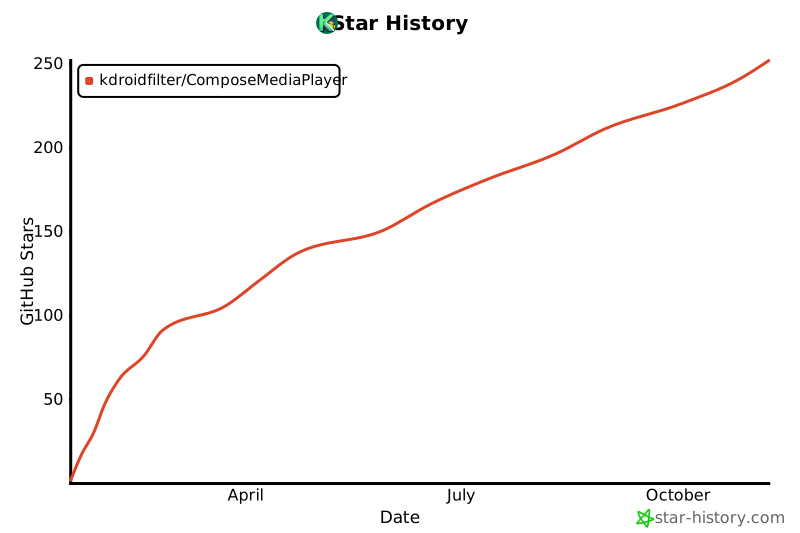
## ⭐ Star History
[](https://www.star-history.com/#kdroidfilter/ComposeMediaPlayer&Date)
[](https://search.maven.org/artifact/io.github.kdroidfilter/composemediaplayer)
[](https://opensource.org/licenses/MIT)
[](https://kotlinlang.org/docs/multiplatform.html)
[](https://github.com/kdroidfilter/ComposeMediaPlayer)
[](https://github.com/kdroidfilter/ComposeMediaPlayer/issues)
[](https://kdroidfilter.github.io/ComposeMediaPlayer/)
[](https://github.com/kdroidfilter/ComposeMediaPlayer/actions/workflows/publish-documentation-and-sample.yml)
[](https://github.com/kdroidfilter/ComposeMediaPlayer/commits/master)
### Supported by
[](https://jb.gg/OpenSource)
**Compose Media Player** is a video player library designed for Compose Multiplatform, supporting multiple platforms including Android, macOS, Windows, and Linux. It is the first fully functional multiplatform video player for Compose for Desktop that requires no additional software installations. All desktop platforms communicate with their native backends through **pure JNI** — no JNA, no GStreamer Java bindings, no external runtime dependencies. The library leverages:
- **GStreamer** (via JNI) for Linux
- **Media Foundation** (via JNI) for Windows
- **AVPlayer** (via JNI) for macOS and iOS
- **Media3** for Android
- **HTML5 Player** for WASMJS
## Table of Contents
- [Live Demo](#-live-demo)
- [Features](#-features)
- [Supported Video Formats](#-supported-video-formats)
- [Installation](#-installation)
- [Compatibility Table](#-compatibility-table)
- [Getting Started](#-getting-started)
- [Initialization](#initialization)
- [Displaying the Video Surface](#displaying-the-video-surface)
- [Content Scaling](#content-scaling)
- [Surface type](#surface-type)
- [Custom Overlay UI](#custom-overlay-ui)
- [Video Playback via URL or Local Files](#video-playback-via-url-or-local-files)
- [Full Controls](#full-controls)
- [Progress Indicators](#progress-indicators)
- [Error Handling](#error-handling)
- [Loading Indicator](#loading-indicator)
- [Using Subtitles](#using-subtitles)
- [Supported Formats](#-supported-formats)
- [Adding Subtitles from URL or Local File](#-adding-subtitles-from-url-or-local-file)
- [Customizing Subtitle Appearance](#-customizing-subtitle-appearance)
- [Disabling Subtitles](#-disabling-subtitles)
- [Fullscreen Mode](#️-fullscreen-mode)
- [Picture-in-Picture (PiP)](#-picture-in-picture-pip)
- [Audio Mode](#-audio-mode)
- [Video Caching](#-video-caching)
- [Metadata Support](#-metadata-support)
- [Example Usage](#example-usage)
- [Basic Example](#-basic-example)
- [License](#-license)
- [Roadmap](#-roadmap)
- [Applications Using This Library](#-applications-using-this-library)
- [Star History](#-star-history)
## 🚀 Live Demo
Try the online demo here : [🎥 Live Demo](https://kdroidfilter.github.io/ComposeMediaPlayer/sample/)
## ✨ Features
- **Multiplatform Support**: Works seamlessly on Android, macOS, Windows, Linux and Compose Web (Wasm).
- **File and URL Support**: Play videos from local files or directly from URLs.
- **Media Controls**: Includes play, pause, loop toggle, volume control, playback speed, loop playback and timeline slider.
- **Initial Playback Control**: Choose whether videos automatically play or remain paused after opening.
- **Custom Video Player UI**: Fully customizable using Compose Multiplatform, with support for custom overlays that display even in fullscreen mode.
- **HLS Streaming**: Native HLS (M3U8) support on all platforms except Web.
- **Fullscreen Mode**: Toggle between windowed and fullscreen playback modes.
- **Picture-in-Picture (PiP)**: Continue watching in a floating window on Android (8.0+) and iOS.
- **Audio Mode**: Configure audio interruption behavior and iOS silent switch handling.
- **Video Caching**: Opt-in disk caching for video data on Android and iOS, ideal for scroll-based UIs.
- **Error handling** Simple error handling for network or playback issues.
## ✨ Supported Video Formats
| Format | Windows | Linux | macOS & iOS | Android | WasmJS |
|--------|-------------------------------------------------------------------------------------------------------------------|-------------------|-----------------------------------------------------------------------------|-----------------|-------------------|
| **Player** | [MediaFoundation](https://learn.microsoft.com/en-us/windows/win32/medfound/microsoft-media-foundation-sdk) | [GStreamer](https://gstreamer.freedesktop.org/) | [AVPlayer](https://developer.apple.com/documentation/avfoundation/avplayer) | [Media 3](https://developer.android.com/media/media3) | [HTML5 Video](https://www.w3schools.com/html/html5_video.asp) |
| MP4 (H.264) | ✅ | ✅ | ✅ | ✅ | ✅ |
| AVI | ❌ | ✅ | ❌ | ❌ | ❌ |
| MKV | ❌ | ✅ | ❌ | ✅ | ❌ |
| MOV | ✅ | ✅ | ✅ | ❌ | ✅ |
| FLV | ❌ | ✅ | ❌ | ❌ | ❌ |
| WEBM | ❌ | ✅ | ❌ | ✅ | ✅ |
| WMV | ✅ | ✅ | ❌ | ❌ | ❌ |
| 3GP | ✅ | ✅ | ✅ | ✅ | ❌ |
| HLS (M3U8) | ✅ | ✅ | ✅ | ✅* | ❌ |
> *\* On Android, HLS requires adding the ExoPlayer HLS module dependency:*
> ```kotlin
> implementation("androidx.media3:media3-exoplayer-hls:")
> ```
## 🔧 Installation
To add Compose Media Player to your project, include the following dependency in your `build.gradle.kts` file:
```kotlin
dependencies {
implementation("io.github.kdroidfilter:composemediaplayer:")
}
```
## 📊 Compatibility Table
| Library Version | Kotlin Version | Compose Version |
|-----------------|----------------|-----------------|
| 0.9.0 | 2.3.20 | 1.10.3 |
| 0.8.6 | 2.3.0 | 1.9.3 |
| 0.8.3 | 2.2.20 | 1.9.0 |
| 0.7.11 | 2.2.0 | 1.8.2 |
| 0.7.10 | 2.1.21 | 1.8.2 |
## 🚀 Getting Started
### Initialization
Before using Compose Media Player, you need to create a state for the video player using the `rememberVideoPlayerState` function:
```kotlin
val playerState = rememberVideoPlayerState()
```
### Displaying the Video Surface
After initializing the player state, you can display the surface of the video using `VideoPlayerSurface`:
```kotlin
// Video Surface
Box(
modifier = Modifier.weight(1f).fillMaxWidth(),
contentAlignment = Alignment.Center
) {
VideoPlayerSurface(
playerState = playerState,
modifier = Modifier.fillMaxSize()
)
}
```
#### Content Scaling
> [!WARNING]
> Content scaling support is experimental. The behavior may vary across different platforms.
You can control how the video content is scaled inside the surface using the `contentScale` parameter:
```kotlin
VideoPlayerSurface(
playerState = playerState,
modifier = Modifier.fillMaxSize(),
contentScale = ContentScale.Crop // Default is ContentScale.Fit
)
```
Available content scale options:
- `ContentScale.Fit` (default): Scales the video to fit within the surface while maintaining aspect ratio
- `ContentScale.Crop`: Scales the video to fill the surface while maintaining aspect ratio, potentially cropping parts
- `ContentScale.FillBounds`: Stretches the video to fill the surface, may distort the aspect ratio
- `ContentScale.Inside`: Similar to Fit, but won't scale up if the video is smaller than the surface
- `ContentScale.None`: No scaling applied
#### Surface type
> [!WARNING]
> Surface type parameter is supported only for Android target.
Available surface type options:
- `SurfaceType.SurfaceView`: uses SurfaceView for the player view, which is more performant for video playback but has limitations in terms of composability and animations.
- `SurfaceType.TextureView` (default): uses TextureView for the player view, which allows for more complex composable layouts and animations.
```kotlin
VideoPlayerSurface(
playerState = playerState,
modifier = Modifier.fillMaxSize(),
surfaceType = SurfaceType.SurfaceView // Default is SurfaceType.TextureView
)
```
#### Custom Overlay UI
You can add a custom overlay UI that will always be visible, even in fullscreen mode, by using the `overlay` parameter:
```kotlin
VideoPlayerSurface(
playerState = playerState,
modifier = Modifier.fillMaxSize()) {
// This overlay will always be visible
Box(modifier = Modifier.fillMaxSize()) {
// You can customize the UI based on fullscreen state
if (playerState.isFullscreen) {
// Fullscreen UI
IconButton(
onClick = { playerState.toggleFullscreen() },
modifier = Modifier.align(Alignment.TopEnd).padding(16.dp)
) {
Icon(
imageVector = Icons.Default.FullscreenExit,
contentDescription = "Exit Fullscreen",
tint = Color.White
)
}
} else {
// Regular UI
Row(
modifier = Modifier
.align(Alignment.BottomCenter)
.fillMaxWidth()
.background(Color.Black.copy(alpha = 0.5f))
.padding(8.dp),
horizontalArrangement = Arrangement.SpaceBetween
) {
// Your custom controls here
IconButton(onClick = {
if (playerState.isPlaying) playerState.pause() else playerState.play()
}) {
Icon(
imageVector = if (playerState.isPlaying)
Icons.Default.Pause else Icons.Default.PlayArrow,
contentDescription = "Play/Pause",
tint = Color.White
)
}
}
}
}
}
```
### Video Playback via URL or Local Files
You can play a video by providing a direct URL:
```kotlin
// Open a video and automatically start playing (default behavior)
playerState.openUri("http://example.com/video.mp4")
// Open a video but keep it paused initially
playerState.openUri("http://example.com/video.mp4", InitialPlayerState.PAUSE)
```
To play a local video file you can use [PlatformFile](https://filekit.mintlify.app/core/platform-file) from [FileKit](https://github.com/vinceglb/FileKit).
```kotlin
val file = FileKit.openFilePicker(type = FileKitType.Video)
// Open a file and automatically start playing (default behavior)
file?.let { playerState.openFile(it) }
// Open a file but keep it paused initially
file?.let { playerState.openFile(it, InitialPlayerState.PAUSE) }
```
The `initializeplayerState` parameter controls whether the video automatically starts playing after opening:
- `InitialPlayerState.PLAY` (default): The video will automatically start playing after opening
- `InitialPlayerState.PAUSE`: The video will be loaded but remain paused until you call `play()`
Check the [sample project](sample/composeApp/src/commonMain/kotlin/sample/app/App.kt) for a complete example.
### Full Controls
- **Play and Pause**:
You can detect the current playback state via `playerState.isPlaying` and configure a Play/Pause button as follows:
```kotlin
Button(onClick = {
if (playerState.isPlaying) {
playerState.pause()
println("Playback paused")
} else {
playerState.play()
println("Playback started")
}
}) {
Text(if (playerState.isPlaying) "Pause" else "Play")
}
```
- **Stop**:
```kotlin
playerState.stop()
println("Playback stopped")
```
- **Volume**:
```kotlin
playerState.volume = 0.5f // Set volume to 50%
println("Volume set to 50%")
```
- **Loop Playback**:
```kotlin
playerState.loop = true // Enable loop playback
```
You can listen for loop restarts via the `onRestart` callback:
```kotlin
playerState.loop = true
playerState.onRestart = {
println("Video restarted from the beginning")
}
```
- **Restart**:
Restart playback from the beginning. Works reliably from any state, including when the video has ended:
```kotlin
playerState.restart()
```
- **Playback End Callback**:
Get notified when playback reaches the end (only called when `loop` is `false`):
```kotlin
playerState.onPlaybackEnded = {
println("Video finished")
}
```
- **Playback Speed**:
```kotlin
playerState.playbackSpeed = 1.5f // Set playback speed to 1.5x
println("Playback speed set to 1.5x")
```
You can adjust the playback speed between 0.5x (slower) and 2.0x (faster). The default value is 1.0x (normal speed).
### Progress Indicators
To display and control playback progress, use `seekStart` and `seekFinished` for slider interactions:
```kotlin
Slider(
value = playerState.sliderPos,
onValueChange = { playerState.seekStart(it) },
onValueChangeFinished = { playerState.seekFinished() },
valueRange = 0f..1000f
)
```
- `seekStart(value)` updates the slider position visually without performing the actual seek, allowing smooth dragging.
- `seekFinished()` commits the seek to the player and ends the drag interaction.
For programmatic seeking (e.g. skip forward/backward), use `seekTo` directly:
```kotlin
// Seek to the middle of the video
playerState.seekTo(500f)
```
### Error Handling
In case of an error, you can display it using `println`:
```kotlin
playerState.error?.let { error ->
println("Error detected: ${error.message}")
playerState.clearError()
}
```
### Loading Indicator
To detect if the video is buffering:
```kotlin
if (playerState.isLoading) {
CircularProgressIndicator()
}
````
### Using Subtitles
Compose Media Player supports adding subtitles from both URLs and local files. Subtitles are now rendered using Compose, providing a uniform appearance across all platforms.
#### 🎯 Supported Formats
The player supports both SRT and VTT subtitle formats with automatic format detection.
#### 🎯 Adding Subtitles from URL or Local File
You can add subtitles by specifying a URL:
```kotlin
val track = SubtitleTrack(
label = "English Subtitles",
language = "en",
src = "https://example.com/subtitles.vtt" // Works with both .srt and .vtt files
)
playerState.selectSubtitleTrack(track)
```
#### 🎨 Customizing Subtitle Appearance
You can customize the appearance of subtitles using the following properties:
```kotlin
// Customize subtitle text style
playerState.subtitleTextStyle = TextStyle(
color = Color.White,
fontSize = 20.sp,
fontWeight = FontWeight.Bold,
textAlign = TextAlign.Center
)
// Customize subtitle background color
playerState.subtitleBackgroundColor = Color.Black.copy(alpha = 0.7f)
```
#### ❌ Disabling Subtitles
To disable subtitles:
```kotlin
playerState.disableSubtitles()
```
### 🖥️ Fullscreen Mode
> [!WARNING]
> Fullscreen support is experimental. The behavior may vary across different platforms.
You can toggle between windowed and fullscreen modes using the `toggleFullscreen()` method:
```kotlin
// Toggle fullscreen mode
playerState.toggleFullscreen()
// Check current fullscreen state
if (playerState.isFullscreen) {
println("Player is in fullscreen mode")
} else {
println("Player is in windowed mode")
}
```
The player doesn't display any UI by default in fullscreen mode - you need to create your own custom UI using the `overlay` parameter of `VideoPlayerSurface`. The overlay will be displayed even in fullscreen mode, and you can customize it based on the fullscreen state:
```kotlin
VideoPlayerSurface(
playerState = playerState,
modifier = Modifier.fillMaxSize(),
overlay = {
Box(modifier = Modifier.fillMaxSize()) {
// Customize UI based on fullscreen state
if (playerState.isFullscreen) {
// Fullscreen UI
// ...
} else {
// Regular UI
// ...
}
}
}
)
```
See the "Custom Overlay UI" section under "Displaying the Video Surface" for a complete example.
### 📺 Picture-in-Picture (PiP)
> [!WARNING]
> PiP is supported on **Android** (8.0+) and **iOS** only. On desktop and web, it is a no-op.
The player supports Picture-in-Picture mode, allowing users to continue watching video in a floating window while using other apps.
| Platform | Status | Notes |
| :--- | :---: | :--- |
| **Android** | ✅ | Requires Android 8.0+ (API 26). Add `android:supportsPictureInPicture="true"` to your Activity in the manifest. |
| **iOS** | ✅ | Uses `AVPictureInPictureController`. Enable "Audio, AirPlay, and Picture in Picture" in Background Modes. |
| **Desktop** | ❌ | No-op |
| **Web** | ❌ | No-op |
```kotlin
// Check if PiP is supported on the current device
if (playerState.isPipSupported) {
// Enable automatic PiP when the app goes to background
playerState.isPipEnabled = true
// Or enter PiP programmatically
val result = playerState.enterPip()
}
```
On Android, you can use the `AutoPipEffect` composable to automatically enter PiP mode when the app goes to the background while a video is playing:
```kotlin
AutoPipEffect(playerState)
```
You also need to forward PiP mode changes from your Activity:
```kotlin
class MainActivity : ComponentActivity() {
override fun onPictureInPictureModeChanged(isInPipMode: Boolean, newConfig: Configuration) {
super.onPictureInPictureModeChanged(isInPipMode, newConfig)
DefaultVideoPlayerState.onPictureInPictureModeChanged(isInPipMode)
}
}
```
### 🔊 Audio Mode
You can configure how the media player interacts with other apps' audio using the `AudioMode` parameter:
```kotlin
// Default: exclusive playback, pauses other apps' audio
val playerState = rememberVideoPlayerState()
// Mix with other apps' audio
val playerState = rememberVideoPlayerState(
audioMode = AudioMode(interruptionMode = InterruptionMode.MixWithOthers)
)
// Duck other apps' audio (lower their volume)
val playerState = rememberVideoPlayerState(
audioMode = AudioMode(interruptionMode = InterruptionMode.DuckOthers)
)
// Ambient mode (iOS): respect silent switch, mix with others
val playerState = rememberVideoPlayerState(
audioMode = AudioMode(
interruptionMode = InterruptionMode.MixWithOthers,
playsInSilentMode = false,
)
)
```
| Parameter | Description | Default |
| :--- | :--- | :---: |
| `interruptionMode` | `DoNotMix`, `MixWithOthers`, or `DuckOthers` | `DoNotMix` |
| `playsInSilentMode` | iOS only: whether audio plays when the silent switch is on | `true` |
> [!NOTE]
> Audio mode is only effective on **Android** and **iOS**. On desktop and web, the parameter is accepted but ignored.
### 💾 Video Caching
You can enable disk-based caching so that video data fetched via `openUri()` is stored locally. Subsequent plays of the same URL load from the cache instead of re-downloading, which is especially useful for scroll-based UIs like TikTok/Reels-style `VerticalPager`.
```kotlin
val playerState = rememberVideoPlayerState(
cacheConfig = CacheConfig(
enabled = true,
maxCacheSizeBytes = 200L * 1024L * 1024L // 200 MB
)
)
```
| Parameter | Description | Default |
| :--- | :--- | :---: |
| `enabled` | Whether caching is active | `false` |
| `maxCacheSizeBytes` | Maximum disk space for the cache (LRU eviction) | `100 MB` |
To clear the cache programmatically:
```kotlin
playerState.clearCache()
```
| Platform | Status | Implementation |
| :--- | :---: | :--- |
| **Android** | ✅ | Media3 `SimpleCache` with `LeastRecentlyUsedCacheEvictor` |
| **iOS** | ✅ | `NSURLCache` with increased disk capacity |
| **Desktop** | ❌ | No-op (config accepted but ignored) |
| **Web** | ❌ | No-op (browser manages its own HTTP cache) |
> [!NOTE]
> Caching only applies to URIs opened via `openUri()`. Local files and assets are not cached. The cache is shared across all player instances, so multiple players benefit from the same cached data.
## 🔍 Metadata Support
> [!WARNING]
> Metadata support is experimental. There may be inconsistencies between platforms, and on WASM it's currently limited to width and height only.
The player can extract the following metadata:
- Title
- Duration (in milliseconds)
- Video resolution (width and height)
- Bitrate (in bits per second)
- Frame rate
- MIME type
- Audio channels
- Audio sample rate
### Example Usage
You can access video metadata through the `metadata` property of the player state:
```kotlin
// Access metadata after loading a video
playerState.openUri("http://example.com/video.mp4") // Auto-plays by default
// Or load without auto-playing:
// playerState.openUri("http://example.com/video.mp4", InitialPlayerState.PAUSE)
// Display metadata information
val metadata = playerState.metadata
println("Video Metadata:")
metadata.title?.let { println("Title: $it") }
metadata.duration?.let { println("Duration: ${it}ms") }
metadata.width?.let { width ->
metadata.height?.let { height ->
println("Resolution: ${width}x${height}")
}
}
metadata.bitrate?.let { println("Bitrate: ${it}bps") }
metadata.frameRate?.let { println("Frame Rate: ${it}fps") }
metadata.mimeType?.let { println("MIME Type: $it") }
metadata.audioChannels?.let { println("Audio Channels: $it") }
metadata.audioSampleRate?.let { println("Audio Sample Rate: ${it}Hz") }
```
### 📋 Basic Example
Here is a minimal example of how to integrate the Compose Media Player into your Compose application with a hardcoded URL:
```kotlin
@Composable
fun App() {
val playerState = rememberVideoPlayerState()
MaterialTheme {
Column(modifier = Modifier.fillMaxSize().padding(8.dp)) {
// Video Surface
Box(
modifier = Modifier.weight(1f).fillMaxWidth(),
contentAlignment = Alignment.Center
) {
VideoPlayerSurface(
playerState = playerState,
modifier = Modifier.fillMaxSize()
)
}
Spacer(modifier = Modifier.height(8.dp))
// Playback Controls
Row(horizontalArrangement = Arrangement.SpaceBetween, modifier = Modifier.fillMaxWidth()) {
Button(onClick = { playerState.play() }) { Text("Play") }
Button(onClick = { playerState.pause() }) { Text("Pause") }
}
Spacer(modifier = Modifier.height(8.dp))
// Open Video URL buttons
Row(
horizontalArrangement = Arrangement.SpaceBetween,
modifier = Modifier.fillMaxWidth()
) {
Button(
onClick = {
val url = "http://commondatastorage.googleapis.com/gtv-videos-bucket/sample/BigBuckBunny.mp4"
playerState.openUri(url) // Default: auto-play
}
) {
Text("Play Video")
}
Button(
onClick = {
val url = "http://commondatastorage.googleapis.com/gtv-videos-bucket/sample/BigBuckBunny.mp4"
playerState.openUri(url, InitialPlayerState.PAUSE) // Open paused
}
) {
Text("Load Video Paused")
}
}
Spacer(modifier = Modifier.height(8.dp))
// Volume Control
Text("Volume: ${(playerState.volume * 100).toInt()}%")
Slider(
value = playerState.volume,
onValueChange = { playerState.volume = it },
valueRange = 0f..1f
)
}
}
}
```
## 📄 License
Compose Media Player is licensed under the MIT License. See [LICENSE](LICENSE) for details.
## 📊 Roadmap
- **Audio Player**: Introduce a standalone audio player for handling audio-only content.
- **Player with Separate Audio and Video Streams**: Add functionality to support different audio and video streams for advanced playback scenarios.
## 🚀 Applications Using This Library
- [Pushscroll](https://pushscroll.com) - Pushscroll: Screen-Time Gym
- [Pixelix](https://github.com/ghostbyte-dev/pixelix) - Pixelfed client for Android and iOS
If you're using this library in your project, please let us know and we'll add it to this list!
## ⭐ Star History
[](https://www.star-history.com/#kdroidfilter/ComposeMediaPlayer&Date)